

Nelx Secure Document Storage can secure attachments uploaded through JetFormBuilder without replacing JetFormBuilder’s form fields, validation or submission process.
JetFormBuilder is optional for the core plugin. Install it only when you need this form integration.
Before You Start #
Make sure:
- JetFormBuilder is installed and active.
- Your form contains a Media Field configured to accept the intended files.
- The Media Field has the correct upload permissions and file restrictions.
- The form saves its Media Field values as usable attachment references.
- You have tested the form’s normal submission before enabling secure uploads.
The secure-storage setting does not itself grant someone permission to upload through a JetFormBuilder Media Field.
Choose Which Forms to Secure #
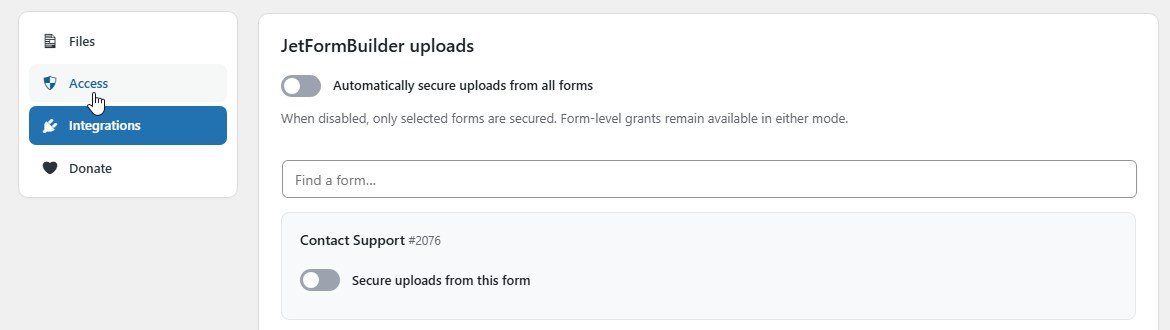
Go to Nelx Studio → Secure Documents Storage → Integrations. When JetFormBuilder is active, the JetFormBuilder uploads area appears.
Automatically Secure Uploads from All Forms #
Enable Automatically secure uploads from all forms if every JetFormBuilder form on the site should use secure storage.
When disabled, use the form list to enable Secure uploads from this form only for the required forms. The list supports search and pagination for larger installations.
Choosing specific forms is usually easier to audit when only certain forms collect confidential files.
Form-Level Role Access #
For an individual form, enable Grant form-level role access, then select the roles authorized to open documents associated with that form.
These grants apply to files recognized as belonging to that form. They do not automatically restrict access to one particular application or business record. For record-specific permissions, see the scoped-access section in Security Considerations and Technical Reference.
Form cards expose this permission section when Secure uploads from this form is selected. If you use the global auto-secure switch but need a per-form role grant, also configure the corresponding form card.
Click Save Integrations when finished.
How a Standard Upload Is Secured #
- The user uploads a file through a permitted JetFormBuilder field.
- JetFormBuilder processes the submission.
- The secure-storage integration recognizes the verified form request and the configured form.
- The attachment is moved into protected storage and marked as secured.
- The file’s WordPress attachment ID and original filename are retained for controlled access and later display.
The secure-file download URL is not a replacement for the Media Field’s stored attachment ID.
Working with Live Uploads #
If you also use Nelx JFB Email Templates → Modern Media Upload in Live Upload mode, the companion integration can prepare protected pending storage and finalize the attachment after the verified form submission.
The important distinction is:
- Modern Media Upload controls the visitor’s upload interface, including drag/drop and progress.
- Nelx Secure Document Storage controls protected storage and access checks.
- File Attachments in the email template controls which uploaded fields are attached to outgoing mail.
These are different settings. Enabling one does not automatically configure the others.

Guest Uploads and File Ownership #
Guest submission is possible only where the JetFormBuilder Media Field and submission workflow allow it. A guest file does not create a logged-in owner. A later visitor cannot access that file simply because the upload form was public.
For workflows that require applicants or customers to view files later, plan the ownership and authentication model explicitly. Do not enable a global all-files role to compensate for missing ownership information.
Form Processing Modal #
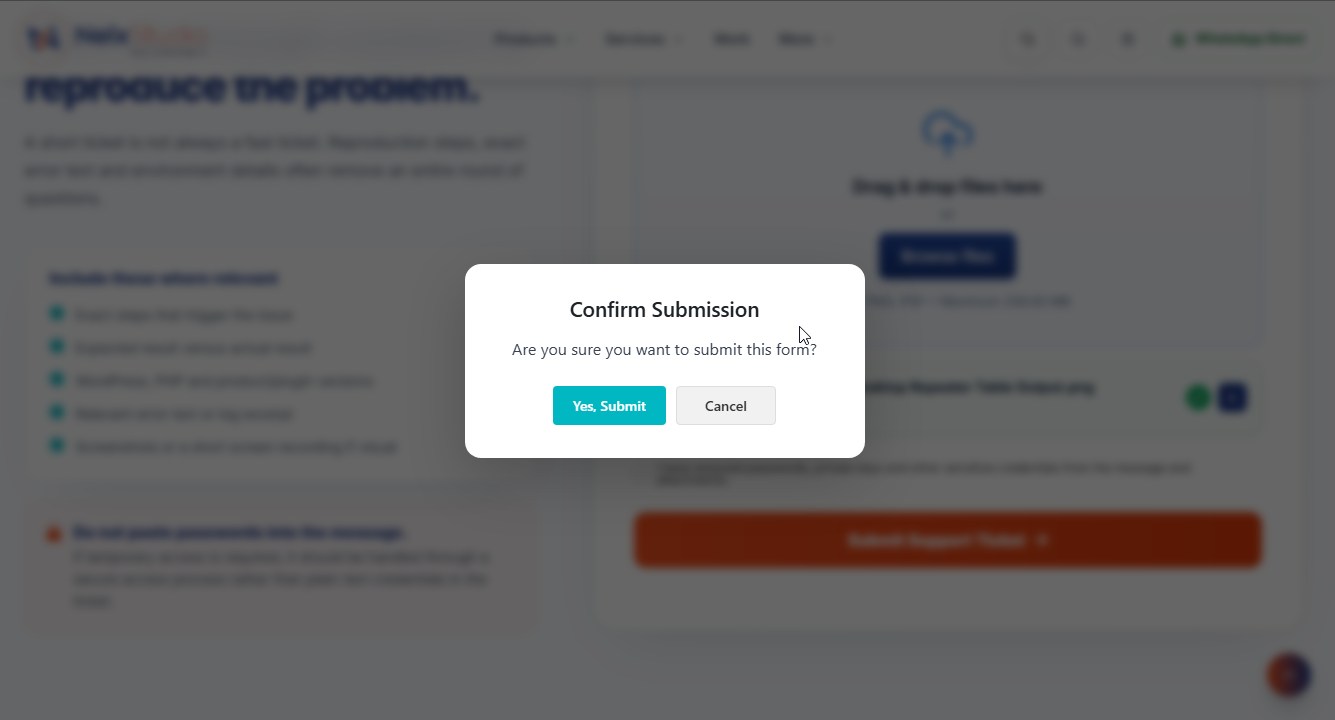
The Form processing area includes Show form processing modal. This provides optional submission feedback when Nelx Secure Document Storage owns that UI.
If the installed Nelx JFB Email Templates plugin already provides processing feedback, the toggle is disabled to avoid two competing processing interfaces.
Display Uploaded Documents #
After submission, display permitted documents through a context-aware shortcode or the JetEngine Secure File Links Dynamic Field callback. Repeater-based uploads can be displayed as cards or a table.
For the frontend display setup, see Secure Document Display and Shortcodes. For email attachment handling, refer to the Nelx JFB Email Templates article File Attachments & Secure Documents.
If a Form Upload Is Not Secured #
Check that JetFormBuilder is active, the selected form is published, the correct form is enabled under Integrations, its Media Field actually uploads an attachment, and the secure storage path is writable. If using a live-upload companion, check whether the verified submission completes and whether the attachment remains in pending storage.
Continue with Troubleshooting and Frequently Asked Questions.


