Nelx JFB Email Templates extends JetFormBuilder with more control over the emails sent after a form is submitted. You can create branded email templates, choose who should receive each email, route submissions based on form answers, attach uploaded files, and build more structured communication workflows without replacing the forms you already use.
The plugin also includes optional improvements for JetFormBuilder Media Fields and standard form fields, as well as confirmation and processing modals for form submissions.
What You Can Do With the Plugin #
Create Branded Email Templates #
Create different email templates for your JetFormBuilder forms and control the subject, sender details, email content, buttons, message boxes, sections, footer, colors, and other branding settings.
You can use one global email style across your site and override selected styles inside an individual template when needed.
Choose Who Receives Each Email #
A template can send email to:
- Email addresses entered directly in the template.
- Email addresses collected in the form.
- WordPress users whose IDs are stored in form fields.
- Users with selected WordPress roles.
- Users associated with a JetEngine Custom Content Type item.
For more advanced workflows, recipients can also change depending on form answers.
Route and Assign Form Submissions #
The plugin includes tools for workflows where the same person should not receive every submission.
You can:
- Use Conditional Recipients to send to different people based on submitted values.
- Use Rotation to distribute submissions among a group of recipients one at a time.
- Store the assigned user ID in post meta when you need to use that assignment later.
- Use Smart Recipient for ticket-style conversations between a post author, an assignee, and other participants.
These features are optional. A simple form can use a normal email address without configuring any of them.
Personalize Email Content With Form Data #
Form values can be inserted into the email subject and content using placeholders such as:
{first_name}
{email}
{message}
The plugin also supports placeholders for recipient details, the current logged-in user, inserted posts, post meta, dates and times, taxonomy terms, JetEngine CCT fields, and other supported data.
Select, radio, and checkbox values can be displayed as readable labels, and repeater fields can be formatted for email instead of being shown as raw submitted data.
The full syntax is covered in Dynamic Content, Placeholders & Macros.
Work With Repeater Fields #
Repeater data can be added to email content without manually building a table for every row. The plugin formats repeater entries for email and supports additional processing for sub-fields that use glossaries or manually entered options.
See Repeater Fields in Email Templates for the complete setup.
Attach Files Uploaded Through Your Forms #
JetFormBuilder file and media uploads can be attached to outgoing emails. This also works with attachments collected inside repeaters.
When Nelx Secure Document Storage is installed, protected files can remain in secure storage while still being attached to emails with their original filenames.
See File Attachments & Secure Documents for attachment setup.
Improve JetFormBuilder Media Uploads #
The Media Upload tab includes an optional Modern Media Upload feature. When enabled, supported JetFormBuilder Media Fields can use a drag-and-drop interface with live upload and real upload progress.
It supports normal Media Fields, repeaters, guest forms, and forms that load existing media when editing saved content.
JetFormBuilder remains responsible for each Media Field’s allowed file types, file size limits, maximum file count, permissions, and submitted value.
See Modern Media Upload for setup and behavior.
Apply a Consistent Style to Standard Form Fields #
The Modern Form Fields option can apply a cleaner, consistent style to standard JetFormBuilder fields. It can be enabled independently from Modern Media Upload and can be applied to all JetFormBuilder forms or only forms inside a chosen CSS class.
See Modern Form Fields for configuration.
Show Confirmation and Processing Modals #
The On Form Submit tab can show a confirmation modal before submission and a processing modal while JetFormBuilder handles the form.
You can set global defaults and override them for individual forms.
See Form Submission Modals for the full guide.
Create In-App Notifications #
If Nelx Notification System is installed, an email template can also create an in-app notification for the recipients who receive the email. Conditional recipient groups can have their own notification settings as well.
See Nelx Notification System Integration for setup.
Track Selected Emails in CRM Communication #
If Nelx CRM Communication is installed, individual email templates can be marked for CRM tracking.
When enabled, the template passes the form data and details of the actual email send to Nelx CRM Communication. The setting is per template, so you can track the emails that belong in the CRM without turning it on for every template.
See Nelx CRM Communication Integration for the full setup.
The Four Main Plugin Tabs #
Open Nelx Email Templates in your WordPress admin area. The plugin is organised into four main tabs:
| Tab | What it is for |
|---|---|
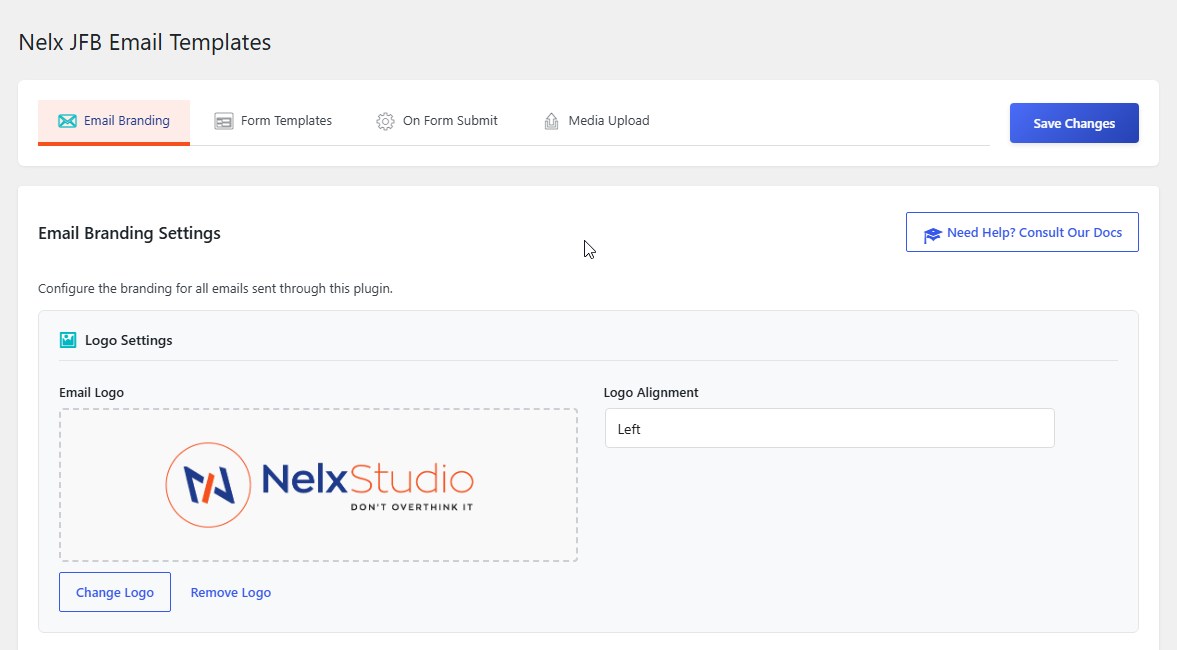
| Email Branding | Global logo, email colors, container styling, buttons, footer, social icons, and other shared email styles. |
| Form Templates | Create and manage the emails sent from JetFormBuilder forms. This is where recipient settings, content, attachments, workflow options, and template-specific settings are configured. |
| On Form Submit | Configure confirmation and processing modals globally or per form. |
| Media Upload | Enable and configure Modern Media Upload and Modern Form Fields. |
If you are setting up the plugin for the first time, start with Form Templates and create one simple email before moving into the advanced workflow features.
Who Is This Plugin For? #
| User | How the plugin can help |
|---|---|
| JetFormBuilder users | Create more flexible, branded emails and control how form submissions are routed. |
| Support teams | Assign requests to staff, store the assignee, send notifications, and support ticket-style replies. |
| HR and recruitment teams | Route applications by department, assign reviewers, and include submitted documents in email. |
| Project and operations teams | Distribute tasks, notify assigned users, and keep assignment data available for later queries or listings. |
| Sites using JetEngine CCTs | Send email using users and data stored in Custom Content Types. |
| Sites handling uploaded documents | Attach submitted files to email and optionally use Nelx Secure Document Storage for protected storage. |
You do not need to use every feature. A template can be as simple as sending a branded confirmation email to one address.
How the Plugin Fits Into JetFormBuilder #
JetFormBuilder remains responsible for building the form and processing the submitted fields. Nelx JFB Email Templates works with that form data to handle the email and related communication features.
A typical setup looks like this:
- Build or choose a JetFormBuilder form.
- Create an email template for that form.
- Choose the recipient.
- Write the subject and email content.
- Insert form values where you need them.
- Add attachments or advanced recipient rules only if the form requires them.
- Keep the template active and save your changes.
- Submit the form to test the complete email flow.
Requirements #
| Requirement | Details |
|---|---|
| WordPress | Version 6.2 or higher. |
| JetFormBuilder | Version 3.6 or higher. Required. |
| PHP | Version 7.4 or higher. |
| JetEngine | Required for features that use JetEngine Custom Content Types. |
| Nelx Notification System | Optional. Required only when creating in-app notifications from email templates. |
| Nelx CRM Communication | Optional. Required only when selected email templates should be tracked as CRM lead communications. |
| Nelx Secure Document Storage | Optional. Used when form uploads need protected storage and secure attachment handling. |
| JetAppointments | Optional. Required for the Connect Relation feature. |
Where to Go Next #
If you are new to the plugin, continue with Creating Your First Email Template. That guide creates a working email using the simplest recipient setup and leaves the advanced options for later.
After that, choose the guide that matches what you are trying to build:
- Email Branding & Global Styles for the overall appearance of your emails.
- Recipients & Delivery Options when you need more than one fixed email address.
- Conditional Recipients & Routing Rules when form answers determine who receives the email.
- Round-Robin Rotation & Assignment Tracking when submissions need to be distributed among a team.
- Dynamic Content, Placeholders & Macros when you need more than basic
{field_name}placeholders. - File Attachments & Secure Documents when your forms collect files.
- Modern Media Upload and Modern Form Fields when you want to update the frontend form experience.
- Nelx CRM Communication Integration when selected email templates should be tracked in your CRM communication workflow.


