Notification Bell Behavior #
Opening the Bell #
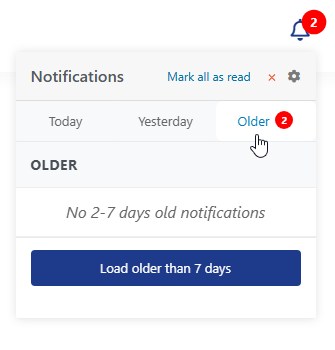
- Click the bell icon to open the dropdown
- The dropdown shows Today’s notifications by default
- Tabs let you switch between Today, Yesterday, and Older
Notification Categories #
| Category | What It Shows |
|---|---|
| Today | Notifications from today, with relative times (2m ago, 3h ago) |
| Yesterday | Notifications from yesterday |
| Older | Notifications from 2-7 days ago, with a button to load older than 7 days |
Time Display #
- Today — Shows relative times (seconds, minutes, hours)
- Yesterday — Shows “Yesterday”
- 2-6 days ago — Shows “Xd ago” (e.g., “3d ago”)
- 7 days ago — Shows “1 week ago”
- 8+ days ago — Shows actual date (e.g., “March 1, 2026”)
Notification Items #
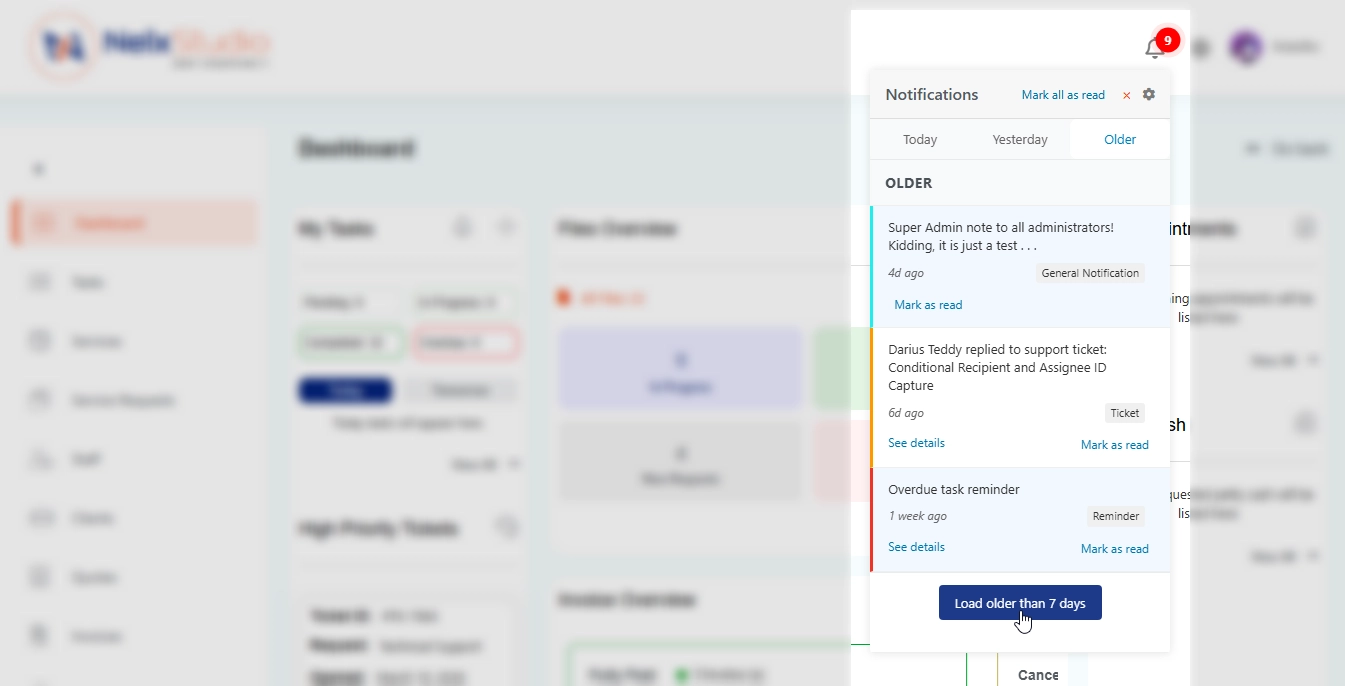
Each notification shows:
- The message
- When it was received
- A badge with the notification type
- “See details” link (if URL is provided)
- “Mark as read” button
Marking Notifications Read #
- Click Mark as read on individual notifications
- Click Mark all as read to mark everything as read
- Clicking “See details” automatically marks the notification as read
Real-time Updates #
The notification bell updates in real-time using Server-Sent Events (SSE):
- New notifications appear immediately when the bell dropdown is open
- The badge count updates instantly
- Sounds play when new notifications arrive (if enabled)
Notification Preferences #
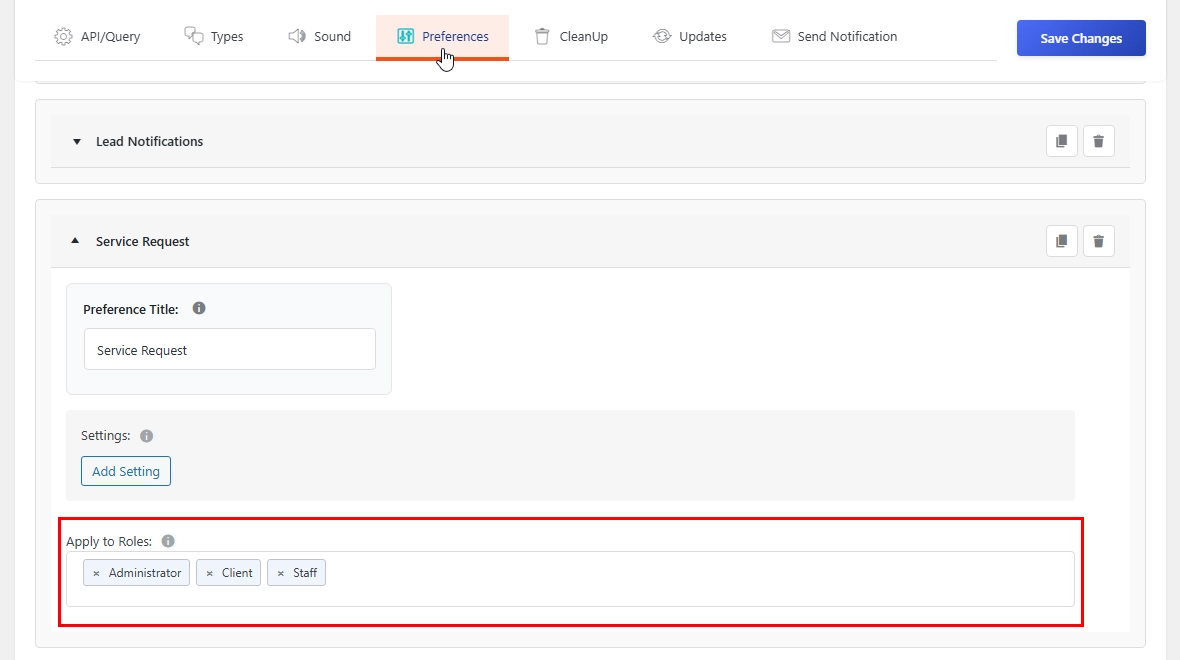
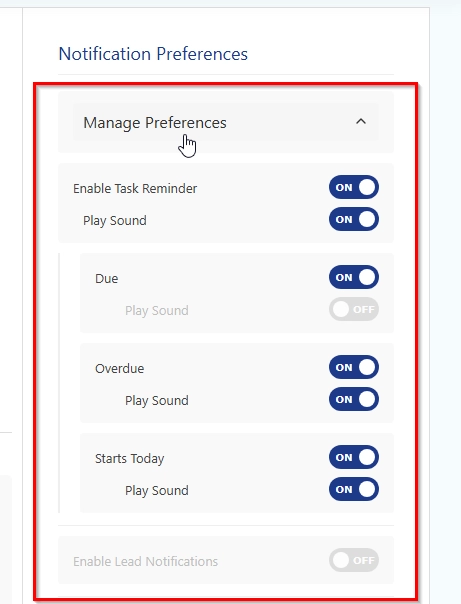
The Notification Settings widget shows preference groups based on the user’s role defined in the backend:
Each preference group includes:
- Master toggle for the entire group
- Sound toggle for the group
- Individual toggles for each subtype
Sound Settings #
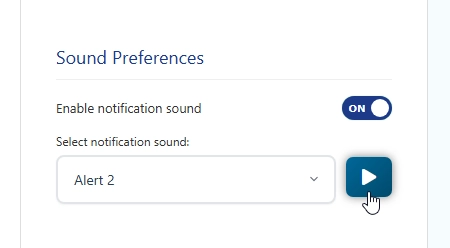
The Sound Settings widget gives users control over their notification sounds:
- Master toggle to enable/disable all sounds
- Dropdown to select preferred sound
- Play button to preview sounds
- Settings save automatically
Sound Playback Logic #
The system intelligently decides when to play sounds:
- Sound must be enabled globally
- The notification must be unseen
- The sound must not have been played before
- User preferences must allow sounds for this notification type
- A cooldown period prevents too many sounds at once
Sounds play only when:
- The bell is closed (so users aren’t overwhelmed)
- The page is visible (not in a background tab)
- New notifications arrive
Send Notifications Form #
Features #
- Same functionality as the admin form
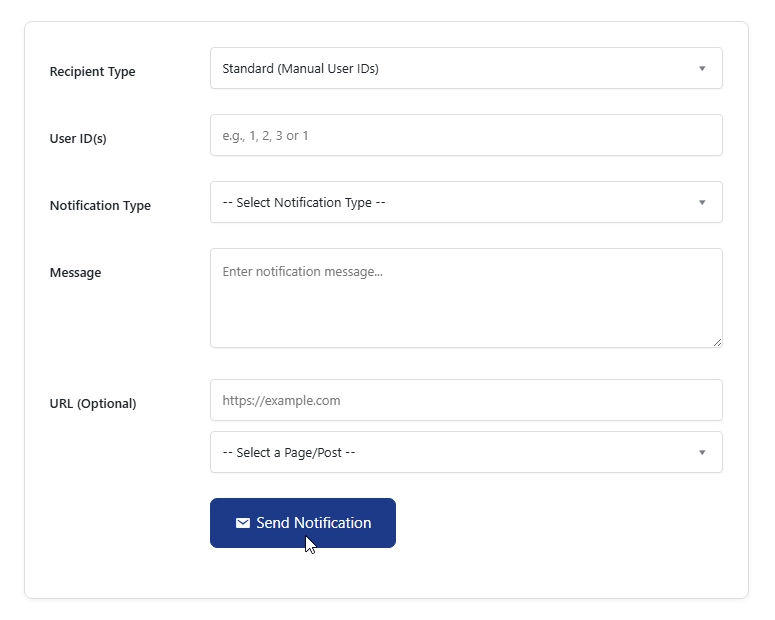
- Full recipient selection (manual IDs, user search, role selection)
- Notification type dropdown (auto-populated from CCT)
- Message field
- URL field with page/post selector
- Real-time validation
- Success/error messages