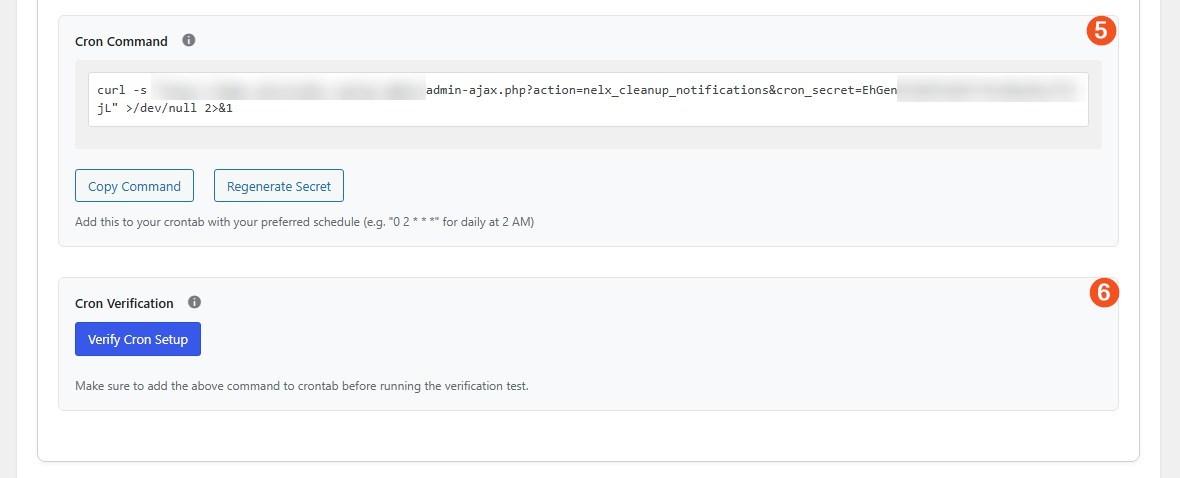

This tab helps you manage your database by automatically or manually deleting old notifications.
Section: Database Cleanup #
1. Automatic Cleanup #
Set how long notifications should stay in your database:
- Click the dropdown
- Choose from:
- 7 days
- 14 days
- 21 days
- 30 days (default)
- 60 days
- 90 days
- Never (keep all notifications/only delete manually)
Once enabled, the system will automatically delete notifications older than your chosen period. This will only happen if you add the Cron command (see step 6 below) to your server’s crontab
2. CCT Slug #
Enter the same CCT slug you configured in the API/Query tab. This tells the cleanup system which table to work with.
3. Manual Cleanup #
Delete old notifications right now:
- Enter the number of days (e.g., 30 for notifications older than 30 days)
- Click Clean Up Now
- The system will immediately delete matching notifications
4. Table Verification #
Check if your CCT table is accessible:
- Click Verify Table Access
- You’ll see a confirmation with:
- Total number of notifications
- Date of the oldest notification
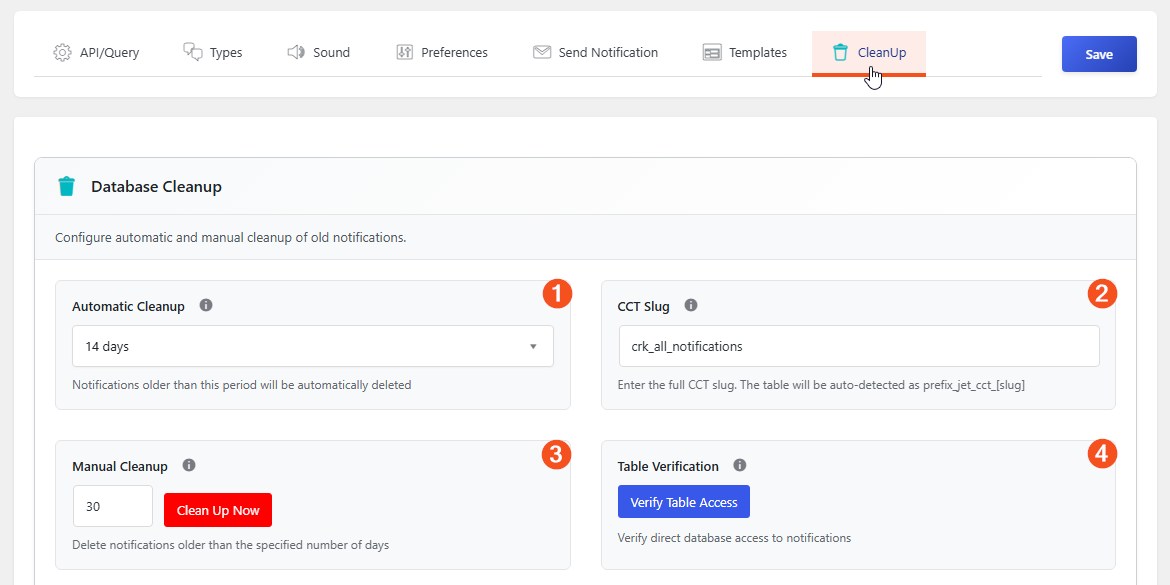
5. Cron Command (Advanced) #
For advanced users who want to set up automatic cleanup via server cron:
- The system generates a secure command with a unique secret key
- Copy this command to add to your server’s crontab
- Example schedule:
0 2 * * *for daily at 2 AM
6. Cron Verification #
Test if your cron setup is working:
- Add the Cron command to your server’s crontab
- Click Verify Cron Setup
- The system will test the connection and show results
Important: The verification test will show how many notifications would be deleted according to your automatic cleanup settings. This is just a connection test, the real deletion will happen when the Cron runs.