

The CCT Item recipient type lets an email template use data from a JetEngine Custom Content Type to determine who receives the email and what CCT information appears in the message.
This is useful when your workflow already stores people or workflow data in a CCT, for example:
- quotes;
- invoices;
- approvals;
- internal requests;
- records with an assigned user or manager;
- any CCT item that contains a WordPress user ID or email address.
JetEngine is required for this recipient type.
Before you start #
Open WordPress Admin → Nelx JFB Email Templates → Form Templates, then open the template you want to configure.
You need to know:
- which CCT contains the data;
- the CCT slug;
- how the form provides the CCT item ID;
- whether the recipient should be the CCT item author or come from another CCT field.
If you only need a normal email address, WordPress user ID, or user role, use one of the simpler options described in Recipients & Delivery Options.
Choose CCT Item as the Recipient Type #
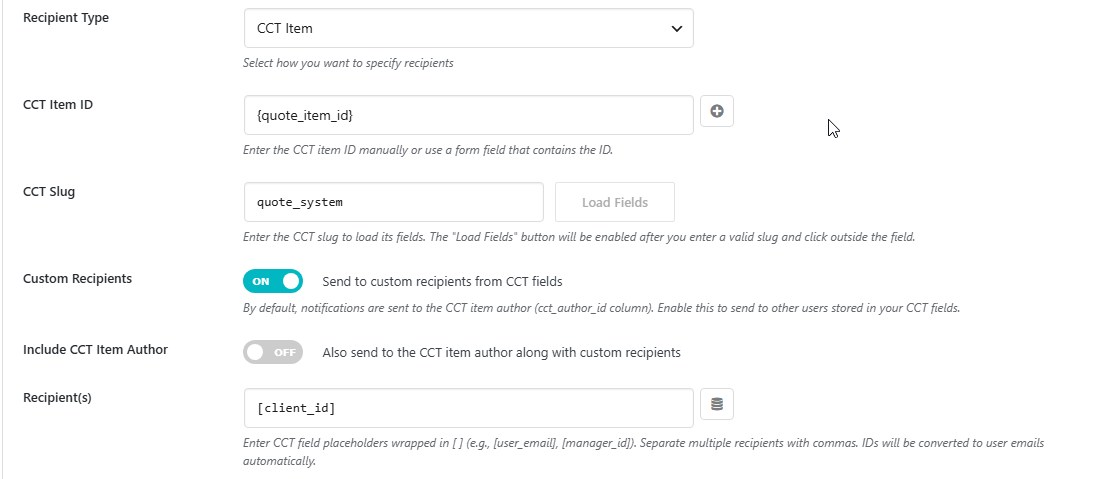
Under Email Settings, set Recipient Type to CCT Item.
The CCT settings will appear below it.
Set the CCT Item ID #
In CCT Item ID, enter the item ID directly or use a JetFormBuilder form field that contains it.
For example:
{quote_id}
If the submitted value of quote_id is 128, the plugin loads CCT item 128 from the CCT you specify next.
The ID must resolve to a numeric CCT item ID.
Enter the CCT Slug #
In CCT Slug, enter the slug of the JetEngine Custom Content Type, for example:
quote_system
After entering a valid slug and leaving the field, Load Fields becomes available.
Click Load Fields to load the CCT fields into the template interface. This makes it easier to insert CCT fields without typing them manually.
Default behavior: send to the CCT item author #
When Custom Recipients is off, the plugin uses the CCT item’s cct_author_id value.
That value must identify a WordPress user with a valid email address.
This is useful when the person who created or owns the CCT item should receive the email.
Send to recipients stored in CCT fields #
Turn on Custom Recipients when the recipient should come from one or more fields inside the CCT item.
A Recipient(s) field will appear.
CCT field placeholders use square brackets:
[field_name]
For example:
[client_email]
or:
[assigned_staff_id]
You can enter more than one recipient separated by commas:
[client_email], [manager_id]
The Insert CCT Field button becomes available after the CCT fields have been loaded, so you can choose a field rather than typing its name manually.
What can a CCT recipient field contain? #
A recipient value can resolve to:
- a WordPress user ID;
- an email address.
If it is a WordPress user ID, the plugin looks up that user’s account email address.
If it is an email address, the address can be used directly, even when it does not belong to a WordPress user.
Include the CCT item author as well #
When Custom Recipients is enabled, you can also turn on Include CCT Item Author.
This sends to the CCT author in addition to the custom recipient fields you configured.
For example:
[assigned_staff_id]can send to the staff member assigned in the CCT;- Include CCT Item Author can also include the user who owns the CCT item.
Use CCT fields in the email #
When the template is using a CCT Item recipient, loaded CCT data can also be inserted into the email using square-bracket placeholders.
Examples:
[client_name]
[quote_number]
[expiry_date]
A subject could be:
Quote [quote_number] has been updated
And the email content could contain:
Hello [client_name], your quote expires on [expiry_date].
CCT placeholders use square brackets. Normal JetFormBuilder form fields use curly braces such as {email} or {first_name}.
CCT date and time formatting #
CCT date values support explicit formatting suffixes:
| Placeholder | Result |
|---|---|
[expiry_date:date] | Date using the WordPress date format |
[expiry_date:time] | Time using the WordPress time format |
[expiry_date:datetime] | Date and time using the WordPress settings |
The plugin also recognizes Unix timestamps and date-like CCT field names when processing ordinary CCT placeholders.
For predictable output, use the explicit :date, :time, or :datetime suffix when the format matters.
Date and time conversion uses the WordPress timezone settings.
Mix CCT placeholders with form placeholders #
A template can contain both types of data.
For example:
Hello [client_name],
Your request submitted by {submitted_by} has been updated.
The two placeholder styles make it clear where the value comes from:
[field_name]→ CCT data;{field_name}→ JetFormBuilder submission data.
CCT placeholders in button URLs #
CCT values can also be used where the template processes placeholders in a button URL.
For example:
[button:https://example.com/quote/[quote_number]/]View Quote[/button]
You can also combine a CCT value and a normal form value in the same URL when both are available.
Button macros are covered fully in Dynamic Content, Placeholders & Macros.
Use a CCT Item inside Conditional Recipients #
CCT Item is also available as a recipient type inside a Conditional Recipient rule.
When a condition matches, you can configure that condition with its own:
- CCT Item ID;
- CCT Slug;
- Custom Recipients setting;
- Include CCT Item Author setting;
- Recipient(s) CCT fields.
This allows different form answers to resolve recipients from different CCT items or recipient fields.
For the condition logic itself, see Conditional Recipients & Routing Rules.
Rotation with CCT recipients #
Rotation can be enabled when the CCT recipient setup resolves to more than one recipient.
The plugin then selects one recipient from that CCT-based pool for the current submission.
See Round-Robin Rotation & Assignment Tracking before enabling Rotation so that assignment storage and post ownership are configured correctly if you need them.
Example: quote approval #
Suppose a CCT called quote_system contains:
client_email;assigned_staff_id;quote_number;expiry_date.
The JetFormBuilder form submits a hidden field called quote_id containing the CCT item ID.
You could configure the template like this:
- Set Recipient Type to CCT Item.
- Set CCT Item ID to
{quote_id}. - Set CCT Slug to
quote_system. - Click Load Fields.
- Turn on Custom Recipients.
- Set Recipient(s) to
[assigned_staff_id]. - Use
[quote_number]and[expiry_date:date]in the subject or email content.
The plugin loads the CCT item, resolves the assigned staff user, and uses the CCT values in the email.
If CCT recipients are not resolving #
Check these points first:
- Make sure JetEngine is active and the CCT exists.
- Check the CCT Slug carefully.
- Make sure CCT Item ID resolves to a numeric item ID.
- Confirm that the item actually exists in that CCT.
- If using the default recipient, confirm
cct_author_idcontains a valid WordPress user ID. - If using Custom Recipients, confirm the chosen CCT field contains a valid WordPress user ID or email address.
- Check that the field name inside
[field_name]matches the actual CCT field name. - If a date is not displaying as expected, use an explicit
:date,:time, or:datetimesuffix.
Where to go next #
For form-value routing around CCT recipients, see Conditional Recipients & Routing Rules.
For distributing a CCT recipient pool one person at a time, see Round-Robin Rotation & Assignment Tracking.
For the complete placeholder and macro reference, see Dynamic Content, Placeholders & Macros.


