

The Files screen gives administrators and authorized staff a central place to manage secured WordPress attachments.
Administrators can access it through Nelx Studio → Secure Documents Storage → Files. Users given backend library access see Nelx Secure Files → Files without the plugin’s settings areas.
Files Screen Overview #
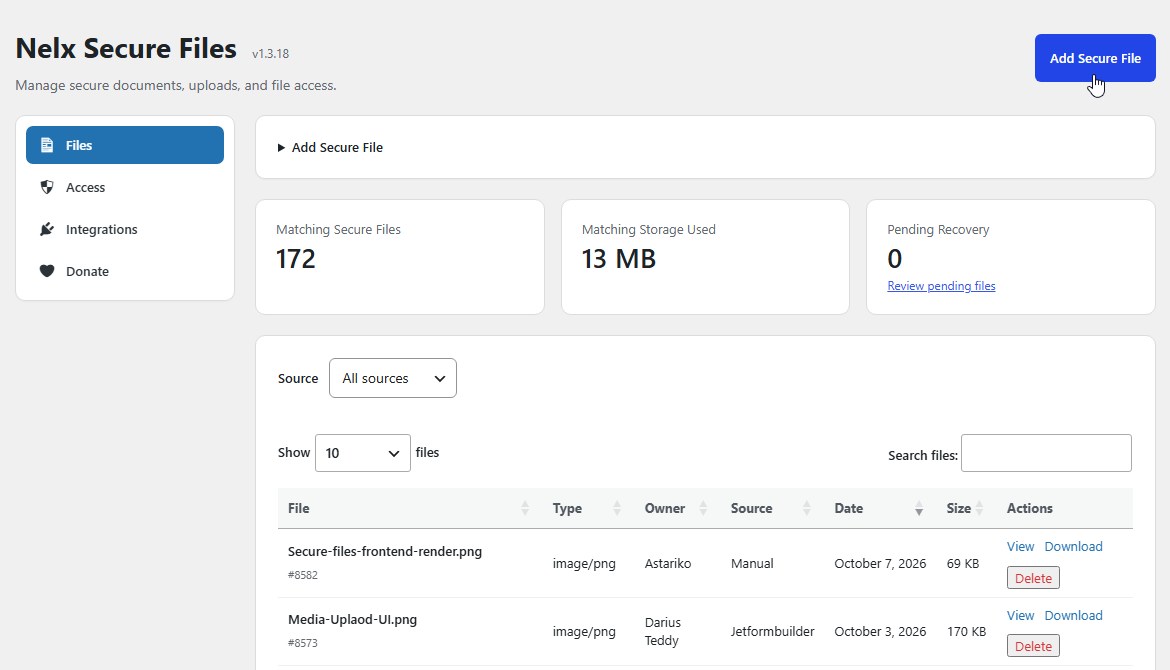
The Files screen includes:
- Add Secure File for users with upload permission.
- Matching Secure Files for the current authorized result set.
- Matching Storage Used and Pending Recovery summary cards for administrators.
- A searchable DataTables listing with a Source filter.
- View, Download and, when permitted, Delete actions.
The table columns are File, Type, Owner, Source, Date, Size and Actions. The file name may also display its attachment ID.
Filter and Search #
Use the Source menu to choose All sources, Manual, Jetformbuilder, API or Legacy. Use Search files to find an original filename/title.
The admin table defaults to 10 files per page. Its length menu offers 10, 20, 50, 100 and All, and pagination appears at the bottom of the table. Selecting All requests every file matching the current authorized filter; it may take longer on sites with many attachments.
The results depend on your account’s privileges. An own-files user will not see another user’s documents merely because their filenames match the search.
Add a Secure File #
- Click Add Secure File in the Files header.
- Drop one or more files into the uploader or click Browse Files.
- Follow the progress indicators for each upload.
- Check that each file reports a successful Secured state.
- Confirm that the file appears in the listing.
The native uploader uses a live XHR workflow, WordPress file validation and the plugin’s shared secure-storage service. New uploads are assigned to the logged-in uploader and marked with the Manual source.
The maximum size comes from your WordPress/PHP upload configuration. Only permitted file types are accepted, and the native upload handler blocks executable/active web content types.
If an upload fails, review the visible error, the allowed file type, the configured upload limit and storage writability.
View and Download #
Use View to open a supported inline type in a separate browser tab, or Download to save the original file. The current user must pass the protected-delivery permission check for either action.
The plugin permits inline viewing only for supported content such as PDF, selected images and plain text. Other content types are delivered as downloads even if View was selected.
The displayed/downloaded filename is the preserved original name; it does not expose the obfuscated physical filename used by storage.
Delete a File #
Delete appears only when the user is allowed to delete that attachment. Deletion is permanent: it removes the WordPress attachment record and validates related secure paths before removing file data.
Before deleting, confirm whether the attachment is referenced by a form submission, post, user field or another record. Removing the attachment can leave those records pointing to an ID that no longer exists.
Pending Recovery #
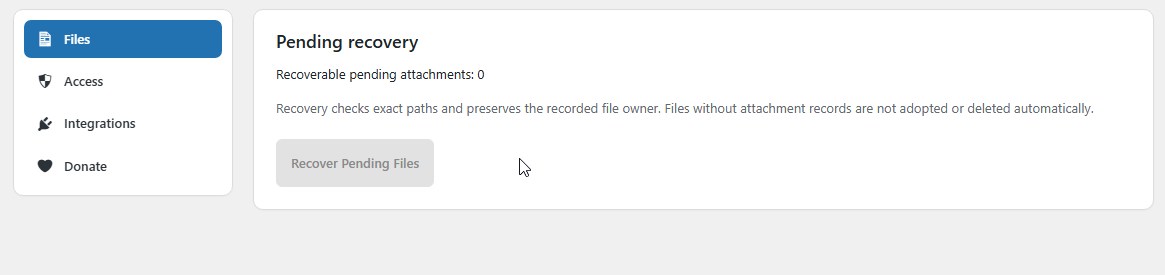
Administrators can open Files → Pending recovery. The panel reports the count of recoverable pending attachment records and provides Recover Pending Files when available.
Recovery identifies pending attachments by their actual recorded paths and keeps the recorded owner/source. It does not automatically adopt orphan physical files that have no WordPress attachment record, and it does not treat generated thumbnails as separate uploads.
If recovery fails, resolve the storage or filesystem issue and retry using the same attachment record rather than uploading duplicate copies blindly.
Access Rules for Staff #
A staff member with an own-files backend role sees only documents whose recorded secure owner matches that account. A trusted all-files role may see ordinary documents across owners. Upload still requires upload_files, and Delete still requires attachment-specific permission.
For files controlled by an application-specific scoped policy, the integration’s explicit approval is required even when an ordinary backend role would otherwise grant broad access.


