

Nelx Secure Document Storage separates permission to open a secured file from permission to use the backend file library. Configure these independently under Access.
Open Access #
Go to Nelx Studio → Secure Documents Storage → Access, or open the plugin’s Access tab from its administration screen.
The page contains Secure-file access, Backend library access, Storage, and a final Save Access button.
Secure-File Access #
Roles Allowed to Access All Secure Files #
Use Roles allowed to access all secure files to grant a WordPress role access to all ordinary, unscoped secured documents, regardless of who uploaded them.
For example, a document-review team might need broader access than the users who submit the files. Only select roles that have a genuine operational reason to open every document. This permission should not be used simply to make a frontend listing visible.
The plugin already recognizes the recorded owner of a file, users with manage_options, and the separate all-files capability. JetFormBuilder form-level grants can provide narrower permissions for documents from a particular form.
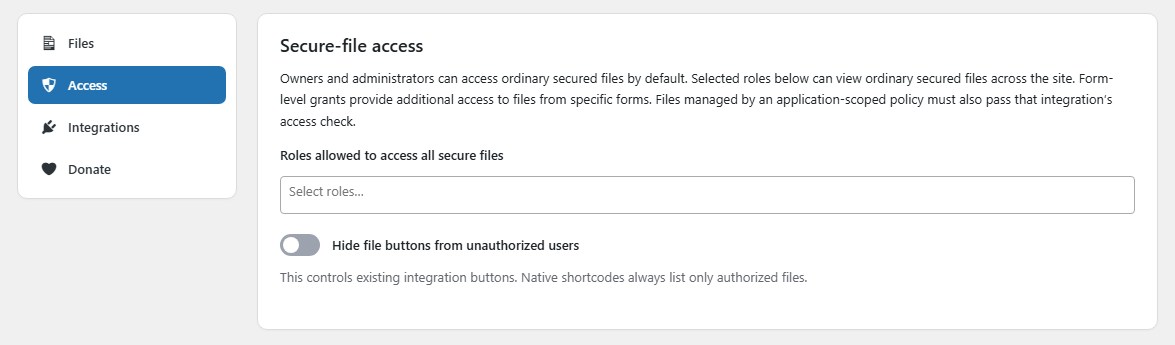
Exception: a file with _nelxsdst_policy_context uses the integration’s scoped permission decision instead of these default grants. See Security Considerations and Technical Reference.
Hide File Buttons from Unauthorized Users #
Enable Hide file buttons from unauthorized users when you want existing integration buttons to disappear for users without access.
This option concerns legacy/integration button rendering. Native shortcodes always omit unauthorized files, whether this switch is on or off. Disabling the switch does not bypass the server-side authorization check.
Backend Library Access #
The backend section has two independent role selectors:
| Setting | Result |
|---|---|
| Roles with access to all secured files | Selected roles can open the Files screen and access unscoped secured files across owners |
| Roles with access to their own files only | Selected roles can open Files but see only files recorded as their own |
If a role appears in both selections, all-file access takes priority.
These roles can open Files only. Access, Integrations and Donate require manage_options.
Selecting a role for the backend library does not automatically grant upload or delete permission. Upload requires WordPress’s upload_files capability; deletion requires appropriate permission to delete the individual attachment.
Storage Status #
The Storage area reports the active path, the saved existing-files path and the filesystem’s writable status. It is informational rather than an upload-location picker.
Administrators can define the private directory through NELXSDST_STORAGE_PATH or the nelxsdst_storage_path filter. The plugin retains existing attachment paths rather than migrating documents automatically.
Do not treat a green/writable storage state as proof that the server blocks direct HTTP access. That must also be checked in your hosting configuration.
Save the Changes #
Click Save Access after reviewing all sections. The plugin saves the Access settings with AJAX and displays a slide-in success or error notice.
After changing role access, test using an actual account assigned to each affected role. It is particularly important to verify own-files restrictions and existing form-level grants.
How Form-Level Rules Fit In #
Global access is site-wide. JetFormBuilder form-level access, configured under Integrations, associates allowed roles with files from a particular form.
If only one team should review documents from a particular application form, prefer the form-level rule over a global all-files role. For a separate business application with record-specific access requirements, use the scoped access extension instead of granting broad roles.
See JetFormBuilder Secure Upload Integration and User Roles and Permission Management.


