

Nelx Secure Document Storage uses WordPress capabilities, recorded attachment ownership and optional role assignments to determine who can see the backend library and who may open protected files.
This guide explains the difference between those permissions.
The Four Common Access Cases #
| User | Backend Files screen | Protected file access |
|---|---|---|
Administrator with manage_options | Yes; all ordinary files | Yes, unless a scoped integration policy denies the file |
| Own-files library role | Yes; only their recorded files | Their owned ordinary files, plus any separately granted ordinary file access |
| All-files library role | Yes; all ordinary files | All ordinary files, unless scoped policy applies |
| User with only a form-level role grant | Not necessarily | Files associated with the permitted JetFormBuilder form |
Scoped files are different. Their integration must explicitly approve each access check, regardless of ordinary administrator, owner or role grants.
Give a Staff Role Files-Only Backend Access #
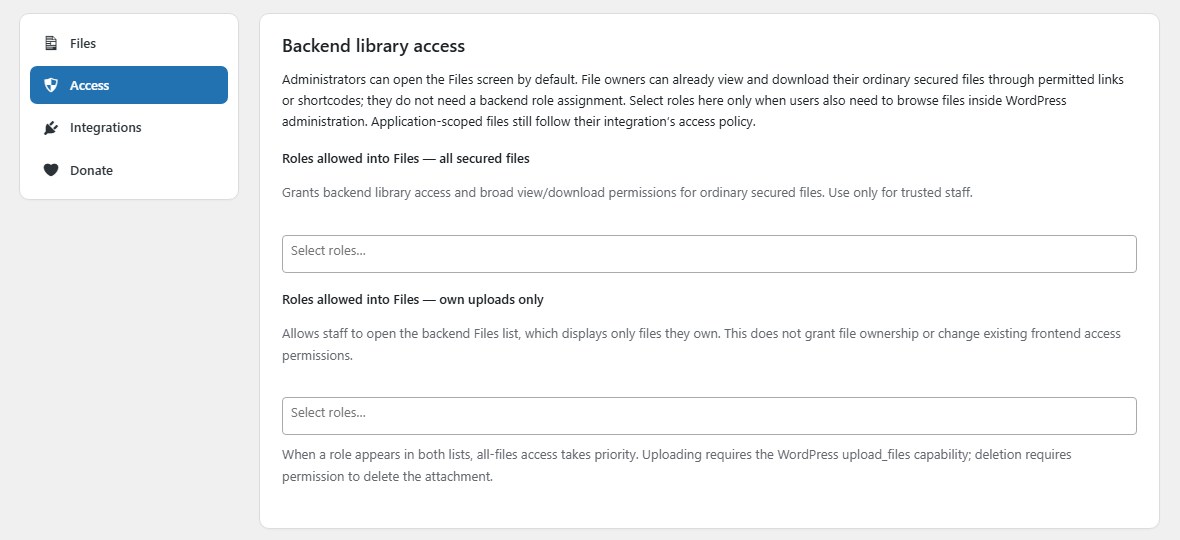
- Go to Access → Backend library access.
- Find Roles with access to their own files only.
- Select the staff role.
- Click Save Access.
- Sign in as a test user with that role.
The user should see the dedicated Nelx Secure Files → Files screen, not Access, Integrations or Donate. The Files table should only list attachments whose recorded secure owner matches that user.
If the staff member must upload new files, their WordPress role must also have upload_files.
Give a Role All-Files Library Access #
Under Roles with access to all secured files, select the role and save. This grants broader backend file access and corresponding protected viewing/downloading for ordinary secured files.
Use this for a trusted document administration role, not for an entire customer-facing role unless that scope is genuinely intended.
If the same role is selected in both backend lists, all-files access takes priority.
Control File Access Without Backend Access #
Use Roles allowed to access all secure files in the Secure-file access section only when a role should be able to open ordinary secured files without necessarily having the backend library menu.
For narrower access associated with a particular JetFormBuilder form, configure Grant form-level role access in Integrations instead.
Understanding File Ownership #
Native uploads are assigned to the currently logged-in uploader. JetFormBuilder submissions may have a recorded owner or may originate from a guest.
The owner is tracked separately from the file’s source and form ID. A file uploaded by a guest does not automatically belong to any later account. An assigned WordPress role does not turn guest ownership into user ownership.
WordPress Capabilities Used #
| Capability | What it controls |
|---|---|
manage_options | Administrator-level Secure Files settings and ordinary file access |
nelxsdst_access_secure_files | Entry to the backend Files library |
nelxsdst_access_all_secure_files | Broad access to ordinary secured files |
upload_files | Additional requirement to use the native secure uploader |
delete_post for the attachment | Additional requirement to delete that particular secure attachment |
The plugin synchronizes its backend capabilities with the selected role settings. Do not manually assign broad capabilities as a substitute for reviewing the settings.
Test Before Going Live #
Use separate accounts to test an administrator, an own-files staff user, an all-files staff user, a form-level reviewer, and a user with no permission. Verify both the Files table and direct View/Download requests. A hidden button alone is not proof of secure access control.
Continue with Global Security and Access-Control Settings and Security Considerations and Technical Reference.


