The API/Query tab is where you connect your notification system to your JetEngine CCT. This is the first step to getting everything working.
Section 1: API Configuration #
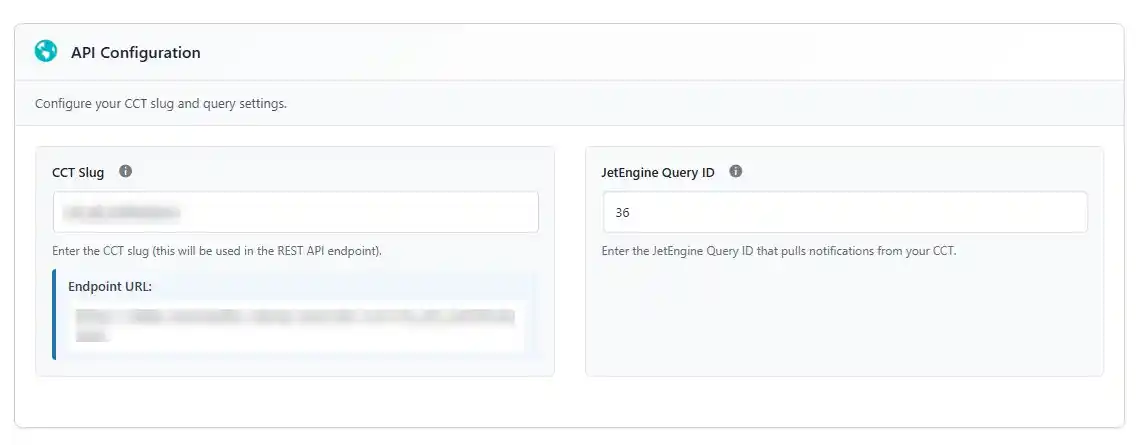
CCT Slug #
This is the unique identifier for your notification CCT. You created this when setting up your Custom Content Type in JetEngine.
- Enter the slug you used when creating your CCT (e.g.,
my_notifications) - The endpoint URL will automatically update as you type
- Nelx notifications system needs this URL to create notifications and also update existing ones.
JetEngine Query ID #
This query pulls notifications from your CCT and displays them in the notification bell.
- Create a new query in JetEngine that pulls items from your notification CCT
- Copy the Query ID from the JetEngine query builder
- Paste it in this field
The query should:
- Filter notifications for the current user (using %current_user_id%)
- Order by creation date (newest first)
Creating a Query in JetEngine #
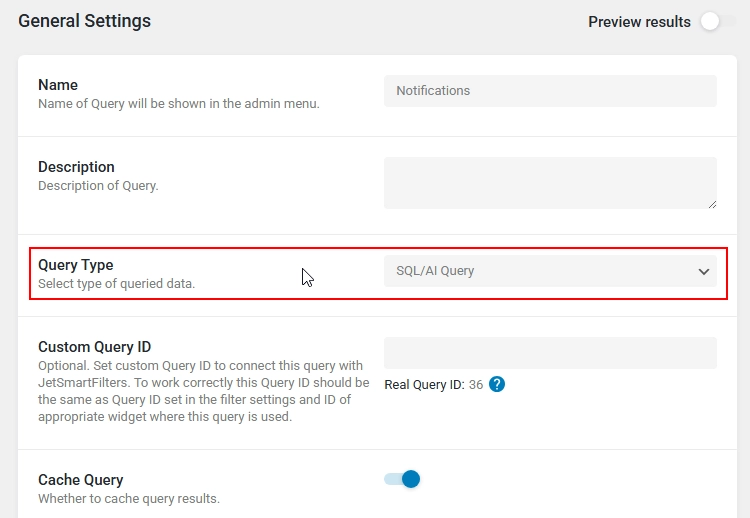
Go to JetEngine > Query Builder > Add New
Query type > SQL/AI Query
NOTE: Real Query ID will appear after you Add Query/save the query.
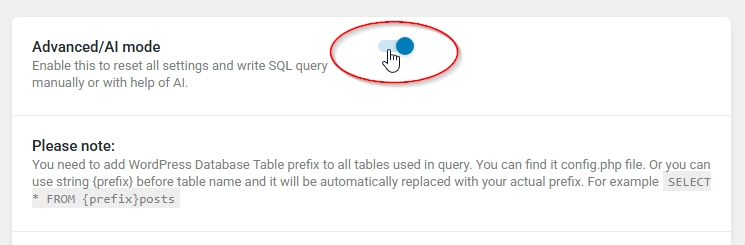
Enable advanced/ai mode under Custom SQL Query section.
SQL Query to fetch notifications #
Copy the query below and replace the following with your real values:
- your_db_prefix – replace this with your database prefix, e.g., wp. Or you can use the string
{prefix}before the table name (please refer to the Please note part in the screenshot above. - your_cct_slug – replace this with your CCT slug
SELECT n.*
FROM your_db_prefix_jet_cct_your_cct_slug AS n
LEFT JOIN your_db_prefix_users AS u ON u.ID = '%current_user_id%'
LEFT JOIN your_db_prefix_usermeta AS um ON um.user_id = u.ID AND um.meta_key = 'your_db_prefix_capabilities'
LEFT JOIN your_db_prefix_nelx_notification_read_status AS rs
    ON rs.notification_id = n._ID
    AND (
        -- Only join read status for role-based notifications when the current user has read it
        (n.user_role IS NOT NULL AND n.user_role != '' AND rs.user_id = '%current_user_id%')
        OR
        -- Or for direct user notifications when it's the specific user
        (n.user_id = '%current_user_id%' AND rs.user_id = '%current_user_id%')
    )
WHERE n.status = 'unseen'
AND (
    -- Direct user match (only if not read)
    (n.user_id = '%current_user_id%' AND rs.id IS NULL)

    OR

    -- Role-based notifications (only if user has role and hasn't read it)
    (
        n.user_role IS NOT NULL
        AND n.user_role != ''
        AND (
            n.user_role LIKE CONCAT('%"', SUBSTRING_INDEX(SUBSTRING_INDEX(um.meta_value, '"', -2), '"', 1), '"%')
        )
        AND rs.id IS NULL
    )

    OR

    -- Public notifications (user_id = 0 and no role) - always show unless read
    (
        (n.user_id = 0 OR n.user_id IS NULL)
        AND (n.user_role IS NULL OR n.user_role = '')
        AND rs.id IS NULL
    )
)
ORDER BY n.cct_created DESC
Let’s break it down:
First, the query starts by grabbing all the information (SELECT n.*) from the table your_db_prefix_jet_cct_your_cct_slug, which we’ll call the “notifications table”.
Then, it tries to connect this table to other tables to gather more information about the current user. Think of this as collecting the context needed to decide which notifications are relevant to the user.
It attempts to link to the your_db_prefix_users table (which stores user information) using the user’s ID. It does this to access user-specific data. It’s assuming the variable %current_user_id% holds the logged-in user’s ID.
It then tries to connect to the your_db_prefix_usermeta table, which stores extra information (metadata) about users. Specifically, it’s looking for the user’s "your_db_prefix_capabilities" (their roles or permissions) to determine which role-based notifications they should see.
Next, it attempts to connect to the your_db_prefix_nelx_notification_read_status table, which keeps track of which notifications each user has already read. It filters so it only connects when one of two conditions is met: either the notification is role-based and the current user has read it, or it’s a direct notification to this specific user and the user has read it.
The WHERE clause says we only want notifications that have a status of “unseen”.
The following AND clause has several conditions, chained with OR, that describe who should see a notification.
The first OR condition checks for direct user notifications. It says: “Show this notification if it’s specifically assigned to this user (n.user_id = '%current_user_id%') and there isn’t a record in the read_status table that says the user has seen it yet (rs.id IS NULL).
The second OR condition looks for role-based notifications. It checks if the notification is assigned to a specific user role (n.user_role IS NOT NULL AND n.user_role != ''). Then, it makes sure the user actually has that role (by checking their um.meta_value). It uses some tricky string manipulation to check if the user’s roles contain the notification’s required role, and lastly it checks if the user hasn’t already read the notification (rs.id IS NULL).
The third OR condition targets public notifications. It looks for notifications that are not assigned to a specific user or role. Essentially if the user_id is 0 or NULL, and the user_role is NULL or empty. It also ensures that the user hasn’t already read the notification. These notifications are meant to be seen by everyone unless they have already been marked as read.
Finally, the query orders the results by the cct_created column in descending order (ORDER BY n.cct_created DESC), meaning the newest notifications will appear first.
Count SQL Query to count notifications #
What the Count Query Does #
Instead of returning notification data, this query simply returns a number.
Copy the query below and replace the following with your real values:
- your_db_prefix – replace this with your database prefix, e.g., wp. Or you can use the string
{prefix}before the table name. - your_cct_slug – replace this with your CCT slug
SELECT COUNT(*)
FROM your_db_prefix_jet_cct_your_cct_slug AS n
LEFT JOIN your_db_prefix_users AS u ON u.ID = '%current_user_id%'
LEFT JOIN your_db_prefix_usermeta AS um ON um.user_id = u.ID AND um.meta_key = 'your_db_prefix_capabilities'
LEFT JOIN your_db_prefix_nelx_notification_read_status AS rs
    ON rs.notification_id = n._ID
    AND (
        -- Only join read status for role-based notifications when the current user has read it
        (n.user_role IS NOT NULL AND n.user_role != '' AND rs.user_id = '%current_user_id%')
        OR
        -- Or for direct user notifications when it's the specific user
        (n.user_id = '%current_user_id%' AND rs.user_id = '%current_user_id%')
    )
WHERE n.status = 'unseen'
AND (
    -- Direct user match (only if not read)
    (n.user_id = '%current_user_id%' AND rs.id IS NULL)

    OR

    -- Role-based notifications (only if user has role and hasn't read it)
    (
        n.user_role IS NOT NULL
        AND n.user_role != ''
        AND (
            n.user_role LIKE CONCAT('%"', SUBSTRING_INDEX(SUBSTRING_INDEX(um.meta_value, '"', -2), '"', 1), '"%')
        )
        AND rs.id IS NULL
    )

    OR

    -- Public notifications (user_id = 0 and no role) - always show unless read
    (
        (n.user_id = 0 OR n.user_id IS NULL)
        AND (n.user_role IS NULL OR n.user_role = '')
        AND rs.id IS NULL
    )
)
Let’s break it down:
This query does exactly the same thing as the previous one, but instead of returning the actual notification data, it simply counts how many unseen notifications the current user has.
The query starts from the your_db_prefix_jet_cct_your_cct_slug notifications table and joins with the users, usermeta, and read_status tables to gather the necessary context about the current user.
The WHERE clause applies the same logic to determine which notifications are relevant to the user:
- Direct notifications specifically assigned to this user that they haven’t read
- Role-based notifications matching the user’s capabilities that they haven’t read
- Public notifications (no specific user or role) that they haven’t read
Instead of selecting the notification details with SELECT n.*, it uses SELECT COUNT(*) to simply return the total number of matching notifications.
Why Two Queries Are Needed #
| Query | Purpose |
|---|---|
| Fetch Query | Retrieves the actual notification list |
| Count Query | Calculates the unread notification number |
This approach improves performance because the system does not need to load the full notification list every time it only needs the count.
Section 2: Authentication #
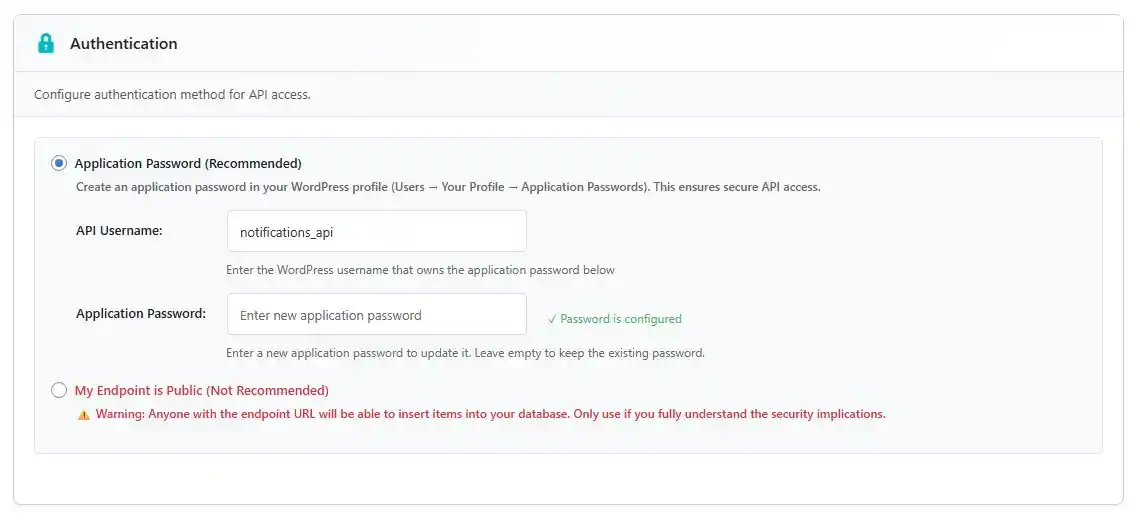
Choose how you want to secure your notification endpoint:
Application Password (Recommended) #
This is the secure way to connect to your CCT.
- Go to Users → Your Profile in WordPress
- Scroll down to Application Passwords
- Create a new application password (name it something like “Notification System”)
- Copy the generated password
- Paste it in the Application Password field
- Click Save and do an API test connection to confirm it works
If you wish, you can create a dedicated user for this purpose, maybe something like notifications or notifications_api, whatever works for you.
Public Endpoint (Not Recommended) #
⚠️ Warning: This option allows anyone with the endpoint URL to create notifications in your database. Only use this if you fully understand the security implications.
- If you select this option, you must check the confirmation checkbox
- Not recommended for production sites
Section 3: API Connection Test #
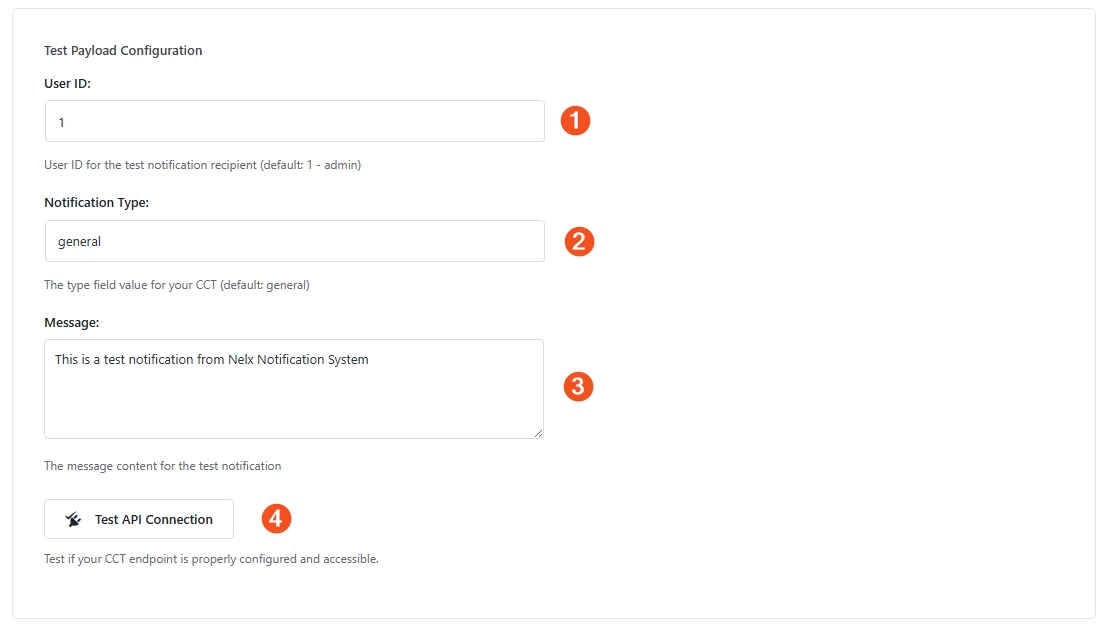
Test your configuration before using it:
- User ID — Enter a user ID to receive the test notification (default is 1 – admin)
- Notification Type — Enter a type for the test notification
- Message — Enter a test message
- Click Test API Connection
If everything is configured correctly, you’ll see a success message. If not, the error message will help you troubleshoot.