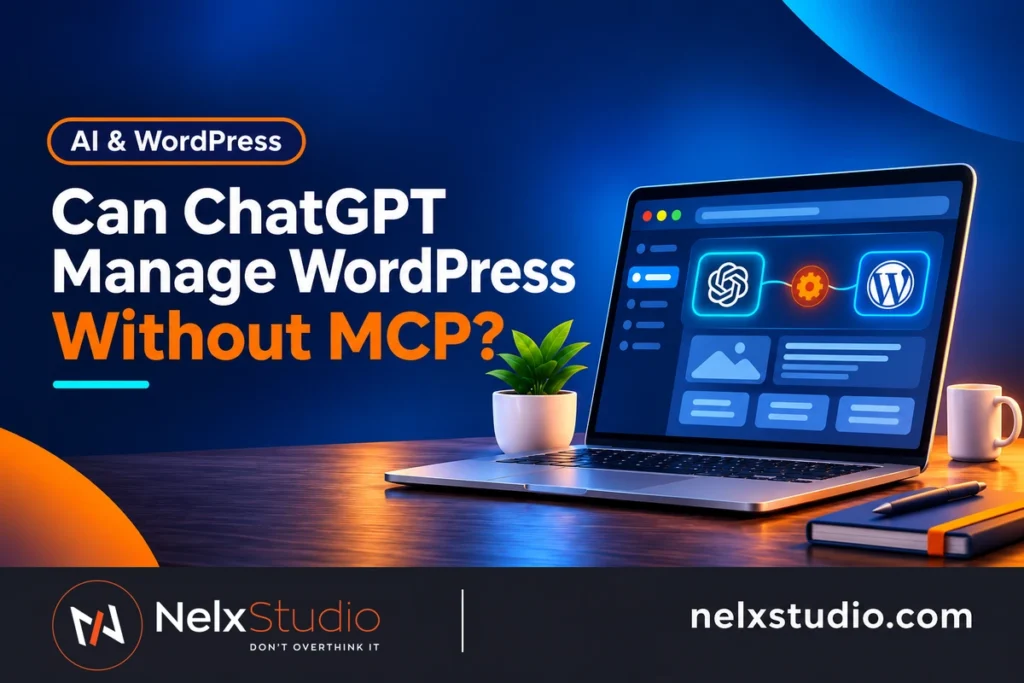
Yes. ChatGPT Work can interact with your WordPress dashboard through its Chrome extension without requiring a separate MCP connection to WordPress. It can inspect pages, navigate administration screens and interact with supported controls using an authorized browser session.
That’s useful if you’ve ever needed to change something on your website but couldn’t remember which WordPress menu or plugin setting controlled it.
Instead of spending time looking through the dashboard, you can describe the task and let ChatGPT help investigate it.
At Nelx Studio, we’ve used this browser-based approach with authenticated WordPress dashboards. It has opened up interesting possibilities for managing websites, although it has limitations worth understanding before giving an AI assistant control of important settings.
Let’s look at how it works, what other users are experiencing, and how it compares with WordPress Studio and MCP.
How does ChatGPT access WordPress without MCP?
The official ChatGPT Chrome extension allows ChatGPT to work with websites through an existing browser session.
When connected to ChatGPT Work through the supported desktop workflow, the assistant can navigate pages, inspect information and interact with controls.
Consider a business using WordPress with several plugins. A particular setting might be buried inside a plugin’s administration page.
Normally, you’d open WordPress, find the relevant plugin, navigate to its settings, locate the control and make the change.
With ChatGPT Work, you can describe what you’re looking for and have the assistant inspect the interface.
You don’t need to configure a WordPress MCP server just to let ChatGPT work with those browser-visible controls.
There is an important distinction, though. The extension doesn’t automatically give ChatGPT access to everything on your website. It operates through an authorized browser connection, and available actions depend on the account, interface and permissions.
What makes Work mode different from ordinary ChatGPT?
In a regular conversation, ChatGPT can use supported browser context to help explain what you’re viewing.
Work mode extends that capability to multi-step tasks involving interaction with websites.
For example, asking ChatGPT to explain a WordPress setting is different from asking it to inspect several settings pages, compare the available controls and prepare a configuration change.
The second task requires navigation and interaction.
That’s where Work mode becomes particularly useful.
It also means you’re consuming Work usage, which may be subject to limits. The connection and available features can differ between the Chrome extension, ChatGPT’s built-in desktop browser and its separate cloud browser.
Three ways AI can work with WordPress
Browser automation isn’t the only option. WordPress has also been expanding support for AI agents through dedicated development tools and structured integrations.
| Approach | Best suited for | Important limitation |
|---|---|---|
| ChatGPT Work + Chrome extension | Inspecting and interacting with an existing WordPress dashboard | Depends on browser access, permissions and interface reliability |
| WordPress Studio + AI agents | Building websites, modifying layouts and development work | Primarily a development environment rather than a general dashboard assistant |
| MCP integration | Structured content operations and repeatable workflows | Requires supported tools and an authorized connection |
These approaches solve related but different problems.
A business owner trying to understand a plugin setting may find browser access convenient. A developer modifying a theme may benefit more from WordPress Studio. An organization automating a recurring publishing process may prefer structured MCP tools.
Choosing the right approach starts with the task.
Our experience using ChatGPT with WordPress at Nelx Studio
We’ve used ChatGPT Work and the Chrome extension while working with authenticated WordPress administration interfaces, including custom plugin settings and dashboards.
One practical benefit is being able to give the assistant access to the actual interface instead of repeatedly explaining how a particular plugin works.
This is especially relevant when dealing with custom WordPress tools that don’t have extensive public documentation.
ChatGPT can examine the visible controls, inspect available settings and help investigate how the interface behaves.
That makes the interaction more useful than relying entirely on a text description of the problem.
However, we need to distinguish that experience from a formal product evaluation.
We haven’t completed a controlled comparison of the extension and MCP. We also haven’t performed a fresh demonstration specifically for this article or collected measurements showing how much time the extension saves.
Our experience establishes that the browser-based approach can be useful in real WordPress work. It doesn’t prove that every task will succeed.
And other users have reported difficulties worth examining.
What are other users saying about the Chrome extension?
The feedback is mixed.
Some users have successfully used ChatGPT to control existing browser tabs and perform tasks through authenticated websites.
Others report problems connecting their browsers to Work mode, even when ordinary ChatGPT can still access information from open tabs.
For example, a developer reported on GitHub that browser automation had previously worked with authenticated WordPress tabs before connection problems appeared.
Another OpenAI Developer Community discussion describes cases where users could share browser context with ordinary ChatGPT but couldn’t reliably transfer that access into Work mode.
Some participants reported similar behavior across multiple browsers.
OpenAI Support has also responded to extension connection complaints, recommending checks involving the active browser profile, website permissions and selected tabs.
These reports are useful, but they don’t establish the overall failure rate. People experiencing problems may be more likely to write about them publicly.
Still, they reveal an important consideration.
An AI assistant may understand exactly what needs doing while being unable to complete the task because its browser connection isn’t working.
That’s different from an AI reasoning problem, and it matters when deciding whether to rely on browser automation for recurring website operations.
What kinds of WordPress tasks are suitable?
Not every website task needs the same level of access or supervision.
A useful starting point is to separate inspection tasks from changes that affect a live website.
| Task | Recommended approach |
|---|---|
| Review a page’s content and identify outdated information | Start with read-only inspection |
| Examine a plugin’s settings and explain their purpose | Inspect the authenticated interface without changing settings |
| Prepare or revise an article | Create or edit a draft, then review it before publishing |
| Modify a website layout | Prefer staging and verify desktop and mobile presentation |
| Change security, payment or authentication settings | Require explicit authorization, technical review and independent verification |
For example, imagine a company has changed its telephone number.
An AI assistant could help inspect pages and identify places where the old number appears.
However, identifying text on public pages doesn’t necessarily reveal every reference in form notifications, custom plugin settings or external services.
Even if ChatGPT updates the visible content correctly, someone still needs to verify that the broader workflow is consistent.
The same applies to a website redesign. Updating a layout is one task. Checking whether it works properly across different devices is another.
The important question is not simply whether AI can click the correct button. It’s whether the resulting website behavior meets the original requirement.
An AI assistant using Chrome can work with the interface available to the logged-in user. That doesn’t guarantee access to the website’s database, source code, hosting environment or external services. Those require their own supported access methods.
When would MCP be a better choice?
MCP stands for Model Context Protocol. It allows compatible AI applications to work with systems through defined tools.
For example, WordPress.com’s MCP capabilities include supported operations for website content, media, comments and other account functions.
Rather than navigating an administration screen visually, an AI agent can call an available tool to perform a specific operation.
That can be useful when an organization has a repeatable task.
Imagine a publishing workflow that requires creating drafts, assigning categories and retrieving article information.
A suitable structured integration may handle those operations more predictably than repeatedly navigating WordPress administration screens.
However, MCP only provides the capabilities exposed by the particular integration.
It doesn’t automatically understand or control every custom WordPress plugin.
That is one reason browser-based access remains interesting. It may allow an assistant to inspect an existing interface even when that functionality has no dedicated MCP tool.
Neither approach is universally better.
MCP is useful when the required operations are available and structured automation matters. Browser interaction is useful when the task depends on inspecting or operating a real interface.
What about WordPress Studio and external AI agents?
WordPress Studio takes another approach.
It’s a free, open-source desktop application designed for building and developing WordPress websites.
On 18 November 2026, WordPress announced expanded support for external AI agents, including Codex, Claude Code and Cursor.
This allows developers to bring supported agents into the WordPress Studio environment instead of relying exclusively on its built-in agent.
The practical applications are different from ordinary dashboard administration.
A developer could describe a page layout, ask an agent to modify the website and inspect the results in the development environment.
WordPress Studio also supports tools and workflows intended for people working directly on website functionality.
For agencies and developers, this may be a more appropriate environment for substantial design and development work.
For business owners whose main concern is managing content or reviewing settings on an existing website, browser-based assistance may be easier to understand.
How to try ChatGPT with your WordPress dashboard safely
Start with one small task that doesn’t require changing anything.
Open the appropriate WordPress administration page in your browser and connect ChatGPT using the supported Chrome extension and desktop Work workflow.
Ask it to inspect a particular setting or explain the information available on the page.
Check whether its findings match what you can see.
Once that works, consider a limited task such as preparing an article draft or reviewing a noncritical configuration.
Avoid beginning with unrestricted access to production settings.
Before authorizing significant changes, establish which account is being used, what the assistant is permitted to modify and how the original state can be restored.
For high-impact changes, use staging wherever possible.
After a change, inspect the saved configuration and test the affected functionality.
What if the browser connection fails?
A connection failure doesn’t necessarily mean WordPress is broken.
Check whether the correct browser profile and tab are selected, whether the extension is enabled, and whether the relevant website permissions are granted.
Security challenges, expired sessions and complex administration interfaces can also interrupt navigation.
OpenAI provides browser setup guidance covering its desktop browser and Chrome extension workflows.
When the connection remains unavailable, don’t assume the task was completed. Use the normal WordPress interface or another supported method instead.
Frequently asked questions about ChatGPT and WordPress
Can ChatGPT edit my WordPress website without MCP?
Yes. ChatGPT Work can interact with supported WordPress administration controls through an authorized Chrome browser session. A separate WordPress MCP configuration isn’t required for that browser-based workflow.
Do I need ChatGPT Work to make WordPress changes?
For delegated browser navigation and interaction through the Chrome extension, Work mode is the relevant workflow. Ordinary ChatGPT can help explain settings, analyze information and draft content without directly performing the website changes.
Does the extension work with self-hosted WordPress?
It can interact with accessible self-hosted WordPress administration interfaces, subject to the browser connection, login permissions and website behavior. It isn’t limited to WordPress.com.
Can ChatGPT configure any WordPress plugin?
Not necessarily. It can inspect and interact with controls available through the connected browser, but complex interfaces, unsupported interactions or missing permissions may prevent particular operations.
Is the Chrome extension the same as ChatGPT’s built-in browser?
No. The Chrome extension connects ChatGPT to an existing browser environment. The built-in desktop browser and cloud browser use different environments and may support different features. They shouldn’t be treated as interchangeable.
Is MCP more reliable than browser automation?
For well-defined operations exposed through compatible tools, MCP can avoid some problems associated with navigating visual interfaces. Reliability still depends on the integration, permissions and task. There is no universal guarantee that one approach always succeeds.
Can ChatGPT replace my WordPress developer?
It can assist with some work normally performed through WordPress administration screens. However, complex development, debugging, security reviews and production verification still require appropriate technical expertise and accountability.
Where should WordPress website owners start?
You don’t need to choose between browser automation, MCP and WordPress Studio simply because one of them is receiving more attention.
Start with the work you need to accomplish.
If you want an AI assistant to inspect an existing WordPress dashboard, ChatGPT Work and the Chrome extension are worth exploring.
If you’re building or modifying website functionality, WordPress Studio may be more suitable.
If you need structured automation and the required WordPress capabilities are available, consider MCP.
At Nelx Studio, we’ll continue examining how these tools fit into practical WordPress workflows, including custom administration interfaces and client portals.
The benefit isn’t simply having an AI assistant capable of interacting with a website. It’s knowing when that assistance is useful, where its limits are and how to verify the result.
Need help reviewing your WordPress website or planning a workflow? Tell Nelx Studio what you’re working on. We can discuss the existing setup and which parts are appropriate for automation.