Overview
Only download the plugin via the button in the header. Do not get it from elsewhere.
Installation
- Download the plugin ZIP file. Use the Download Plugin button above
- In your WordPress dashboard, navigate to Plugins > Add New > Upload Plugin.
- Upload the ZIP and activate the plugin.
- On activation:
- A protected storage area is set up in your uploads folder.
- Access blocks are added to prevent direct file viewing.
- A unique subfolder is created for added security.
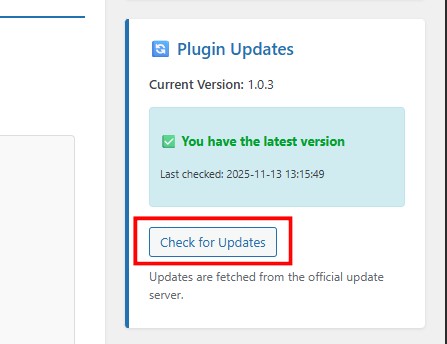
Updates: The plugin checks for updates automatically through the built-in server. You can also use the Check for updates button on your dasboard to do manual checks.
After Installation:
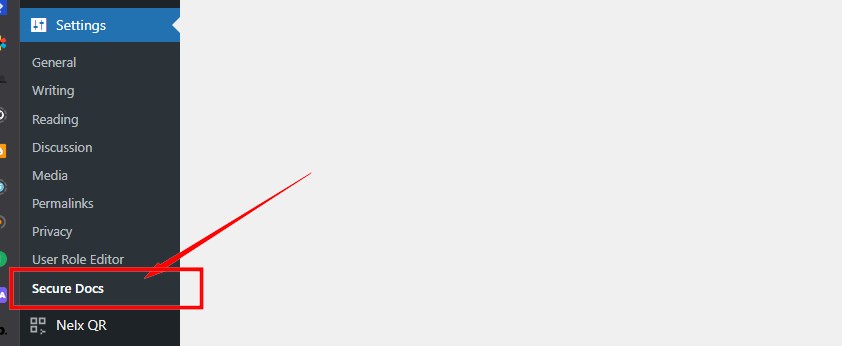
- Visit Settings > Secure Docs (or click the settings link on the Plugins page).
- Adjust the options as needed.
- Test by uploading a file through a JetFormBuilder form.
Configuration
Settings Page:
Found under Settings > Secure Docs (or via the plugin's settings link).
Key options include:
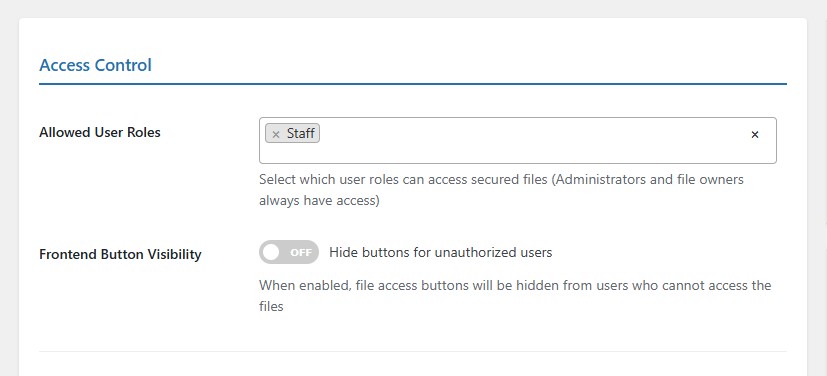
Access Control
- Allowed User Roles: Select which user roles can access secured files (Administrators and file owners always have access)
- Frontend Button Visibility: Hide buttons for unauthorized users
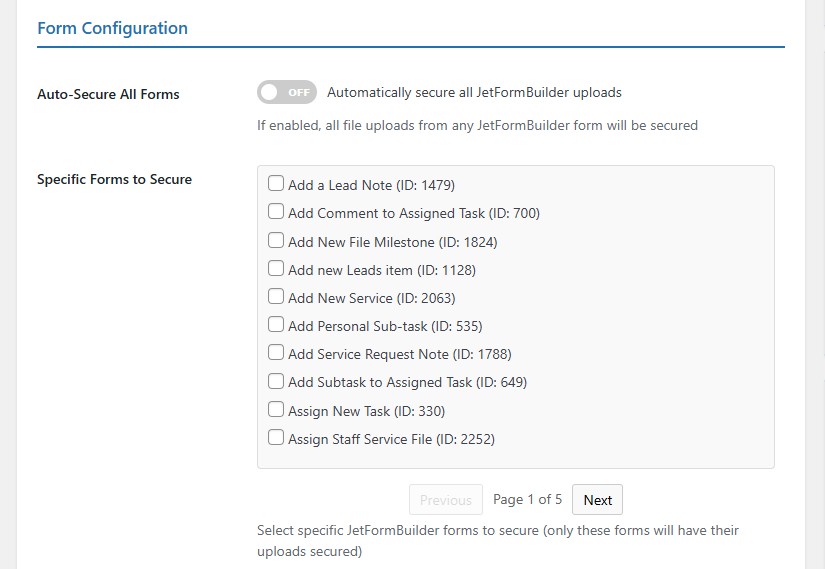
Form Configuration
- Secure All Forms Automatically: If enabled, all your JetFormBuilder forms files will be secured
- Specific Forms to Secure (recommended): All your JetFormsBuilder forms will be listed here. Select specific forms you'd like their file uploads secured.
Debugging (optional)
Logs will be written to the WordPress debug log.
Note: Keep this setting disabled unless you run into issues and want to check the logs.
Usage
Uploading Documents Securely with JetFormBuilder:
- Build or edit a JetFormBuilder form that includes file upload fields. Please check JetFormBuilder section on how to correctly set your media fields.
- Pick the form from the list if or you're set if you have turned on auto-protection.
- Users fill and submit the form.
- Uploaded files are automatically protected and replaced with safe references.
Showing Secure Files in JetEngine Listings:
Add a Dynamic Field widget to your listing template.
For normal fields:
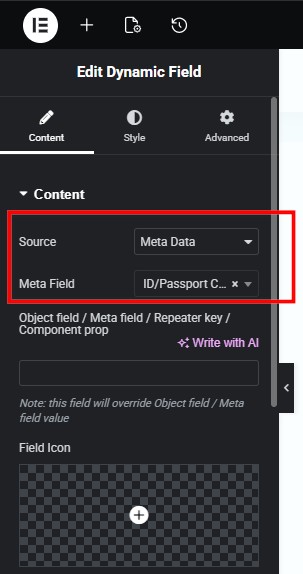
Source - Meta Data
Meta Field - Select your media field from the dropdown.
Scroll down and toggle filter field output switcher on. Select Secure File Links in the callback dropdown. That's it!
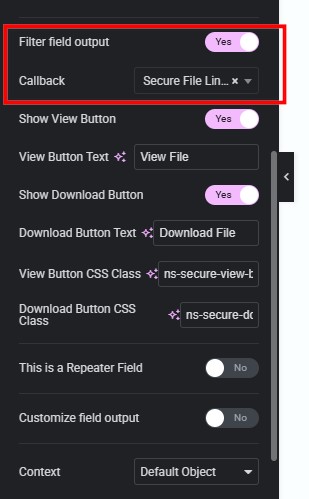
For repeater fields:
The steps are almost similar to those of normal fields, but with a slight difference.
Source - Meta Data
Meta Field - Leave empty and instead, add your repeater field name in the object field/meta field/repeater key/component prop input field. See screenshot below.
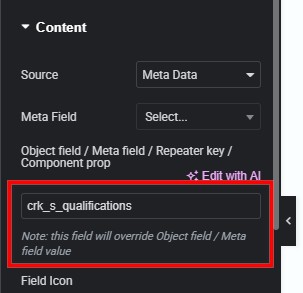
Scroll down and toggle filter field output switcher on. Select Secure File Links in the callback dropdown. Toggle this is a repeater field switcher and choose your repeater layout (table/cards).
Styling Buttons, Tables, and Cards
Buttons:
Button style controls are available for both normal and repeater fields the moment you choose Secure File Links callback.
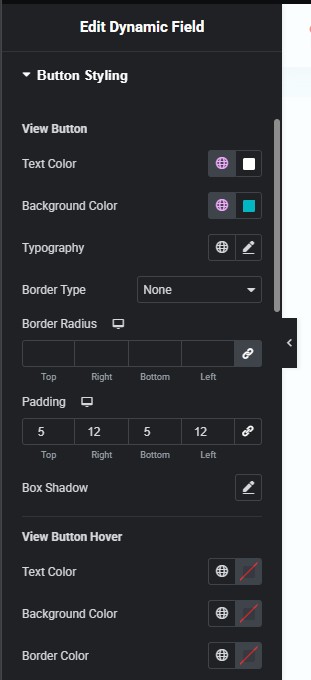
Table:
Table styling controls are available conditionally, that is, if you choose your repeater layout as table.
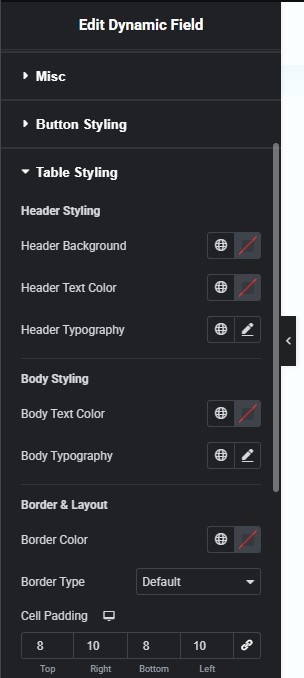
Cards:
Cards styling controls are also available if you set your repeater layout to cards.
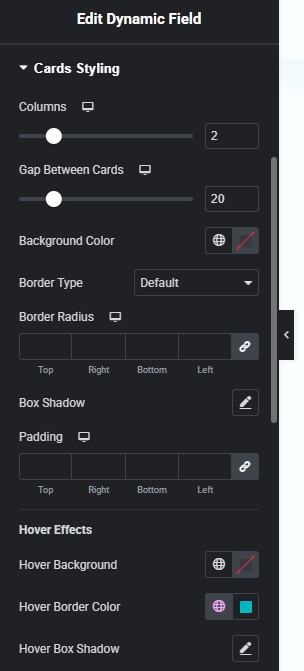
Adjust styles for buttons, cards, or tables as desired.
You can make other button adjustments from here such as hidding view/download buttons, change button text, etc.
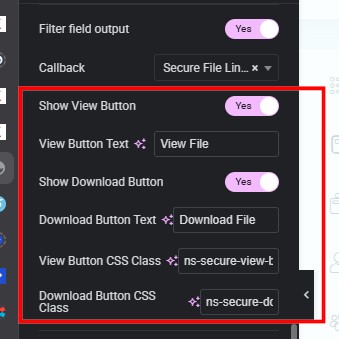
This usage documentation assumes you're using Elementor, and have your meta fields build using JetEngine Meta Boxes
Jet Form Builder
Below is how you should configure your JetFormBuilder (JFB) form media field. Follow the same for forms with presets.
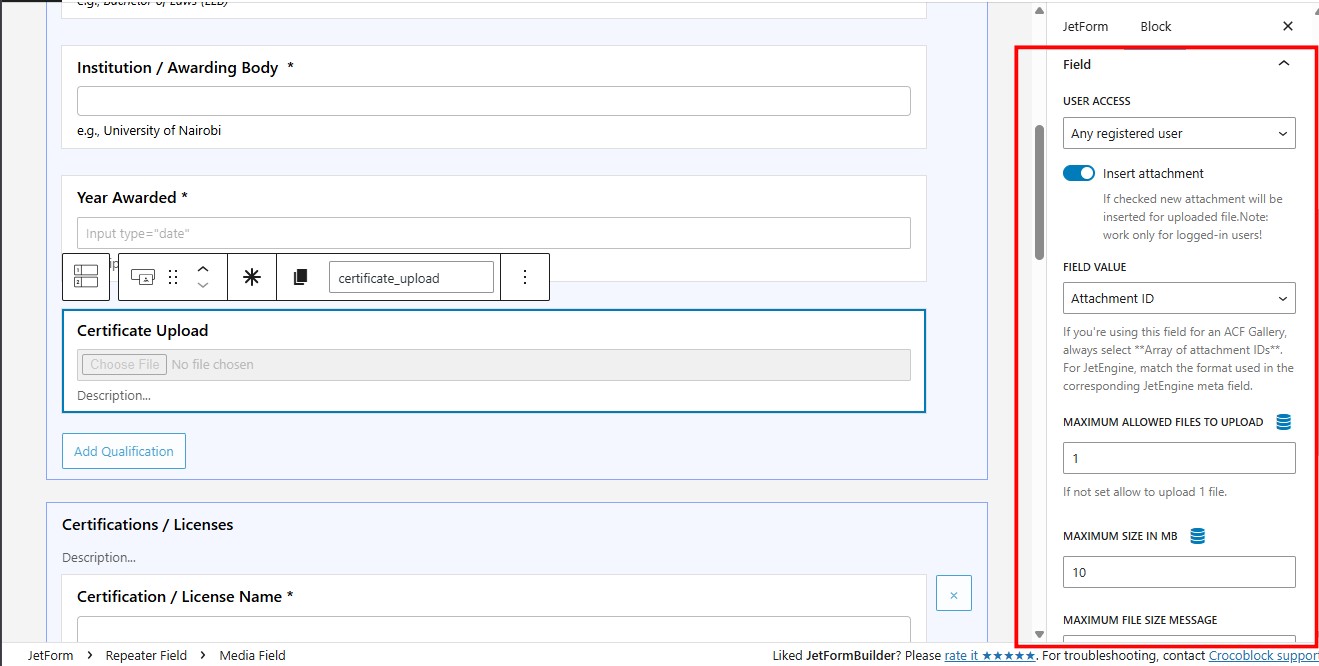
User Access: set this based on your use case. Setting it to any registered user should work in many cases.
Enable insert attachment and note that it only works for logged-in users.
Configure the rest based on your preferences.
Please do not leave user access empty. Your forms will fail to submit. This is a common area we tend to forget and wonder why our forms are not going through.
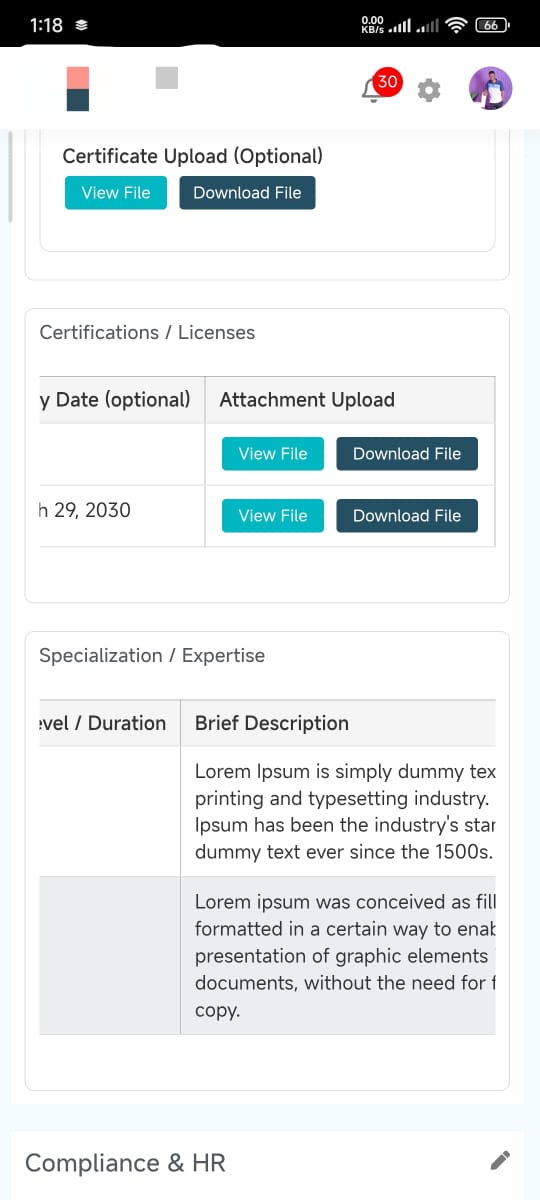
Frontend Examples
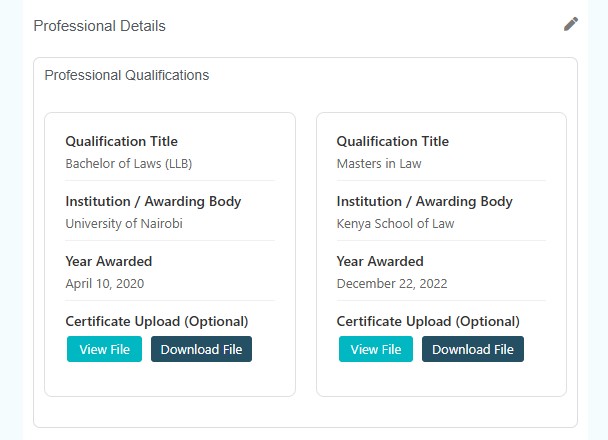
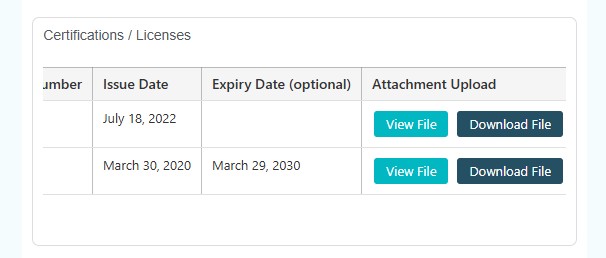
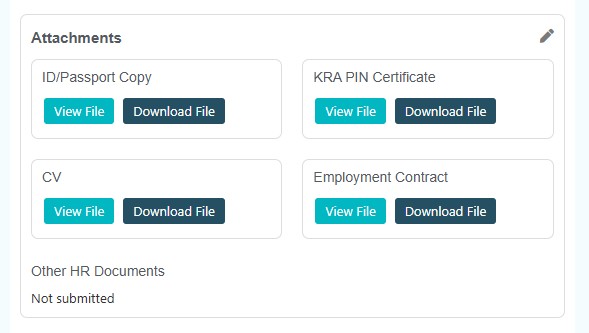
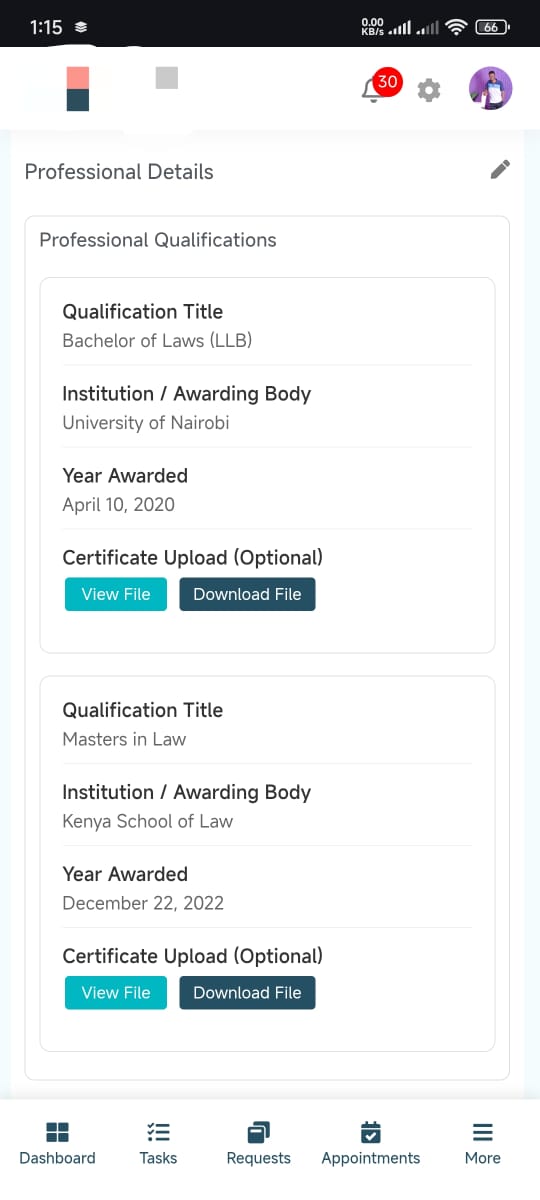
Troubleshooting
Common Issues and Fixes:
- Files Aren't Getting Protected: Check form ID or auto-secure setting.
- Links Don't Work: Ensure correct user access or clear cache.
- Files Visible in Media Library: Check for custom query overrides.
- Repeater Displays Wrong Labels: Confirm JetEngine meta fields.
- Permission Denied on Downloads: Verify folder permissions.
- Slow Uploads or Timeouts: Increase PHP upload limits.
- Plugin Conflicts: Update JetFormBuilder and JetEngine.
If none of the above solves your issues, please enable debug logging, submit a form, check the logs for lines with [NS_SECURE_UPLOADS] and share it with us for further investigations.
Changelog
1.1.1 (January 23, 2026)
- Added server protection diagnostics to the settings sidebar
- Automatic detection of Apache, LiteSpeed, and Nginx environments
- Added secure storage protection self-test with HTTP status feedback
- Added copy-ready Nginx configuration rule for blocking direct access
- One-click button to copy Nginx rule for easier setup
- Improved guidance for securing uploads on Nginx servers
1.1.0 (January 21, 2026)
- Added Form Processing Modal setting for better user experience
- Users can now see submission feedback instead of blank page
- Modal displays during form processing with animated indicator
- Smartly detects when to show/hide based on form response
- Settings control added to Form Configuration section
- Modal only activates when setting is enabled
- Fixed modal positioning and display issues
- Maintained all existing security and logging features
- Backward compatible with existing installations
1.0.4 (November 15, 2025)
- Structured Log Levels: Added info, debug, warning, and error levels for better log management
- Context-Aware Tracking: Implemented request/form/attachment ID tracking throughout processing
- Comprehensive Error Handling: Added detailed failure logging for file operations and form submissions
- Performance Optimized Logging: Reduced log spam with smart deduplication and memory management
- Improved Troubleshooting: Added detailed debug information for security operations and attachment processing
1.0.3 (November 13, 2025)
- Improved file handling and repeater styling
- Enhanced: Get the real label from JetEngine meta-box configuration
- Fixed JFB preset where editing forms lost files
- Enhanced button styling options
- Improved security features
1.0.2
- Added repeater support with styling options
1.0.1
- Introduced secure upload processing and button callbacks
1.0.0
- Launched core protection features
Support
For any issues, please reachout through info@nelxstudio.com. Your email subject should start with [Nelx Secure Docs]
You can also send us your feedback or review.